
API keys
Manage your API keys to authenticate requests with Kashier
Kashier authenticates your API requests using your account's API keys. If you do not include your key when making an API request, or if you use one that is incorrect or outdated, Kashier returns an error.
Every account is provided with separate keys for testing and running live transactions. All API requests exist in either test or live mode, so one mode cannot interact with objects in the other.
There are also two types of API keys: Payment API Keys and Secret API Keys.
- Payment API Keys are used to sign requests and verify Kashier's responses. You use this key to compute the order hash — an HMAC-SHA256 signature over the order's details that proves the amount and order ID were not tampered with in the customer's browser — and to verify the signature Kashier sends back. See request hashing.
- Secret API Keys should be kept confidential and stored only on your own servers. A Secret API Key authenticates the request; it does not by itself authorize every operation. What it can do is bounded by the role and permissions attached to the user the key belongs to — routes are individually checked against privileges such as
balance.all.view_balancefor settlement and balance reads, and a key whose role lacks the privilege is rejected even though the key itself is valid. On top of that, calls are subject to an optional IP allow-list you configure per merchant; requests from a non-allow-listed IP are rejected with a 403 error. Some capabilities are also gated per merchant and off until Kashier enables them — see Capabilities are enabled per merchant.
Each account has a total of four keys: a Payment API Key and a Secret Key pair for test mode and live mode.
Credentials at a glance
The docs and API refer to your credentials by different names depending on context — the prose term, the HTTP header you send it in, and the identifier Kashier's tooling uses internally aren't always the same word. Use this table to map between them:
| Credential | HTTP header / body field | Other identifiers |
|---|---|---|
| Payment API Key | api-key header | apiKey — OpenAPI security-scheme ID (the API reference playground stores it in your browser's localStorage under fumadocs-openapi-auth-apiKey) |
| Secret Key | Authorization header (raw value, not a Bearer token) | secretKey — OpenAPI security-scheme ID (stored as fumadocs-openapi-auth-secretKey in the playground) |
| Merchant ID (MID) | merchantId — JSON request-body field (most endpoints); mid — query parameter on some endpoints (e.g. installment plans) | authmerchantid — HTTP header, used only for multi-merchant accounts |
Obtaining your keys and MID
Your API keys are always available in the Dashboard. The MID can be found under your username in the dashboard's top navigation bar.
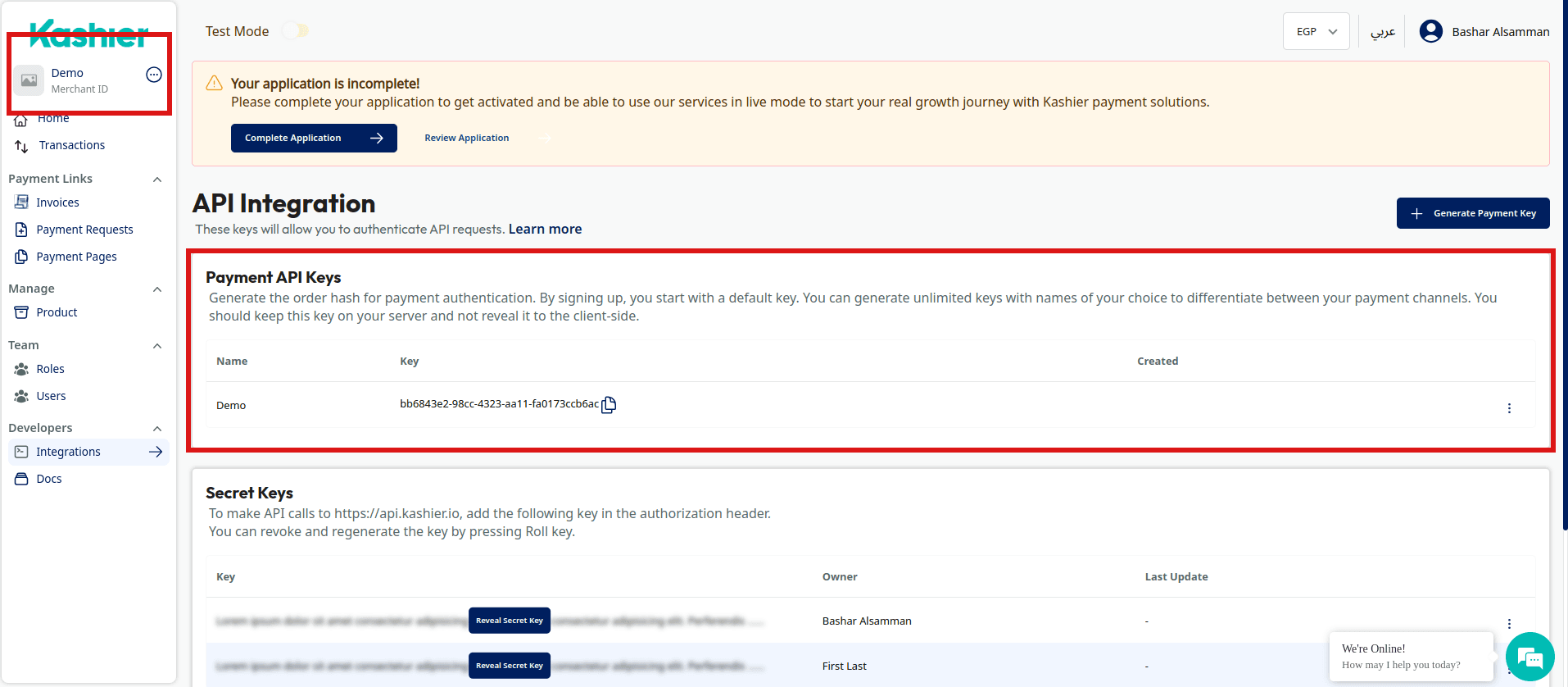
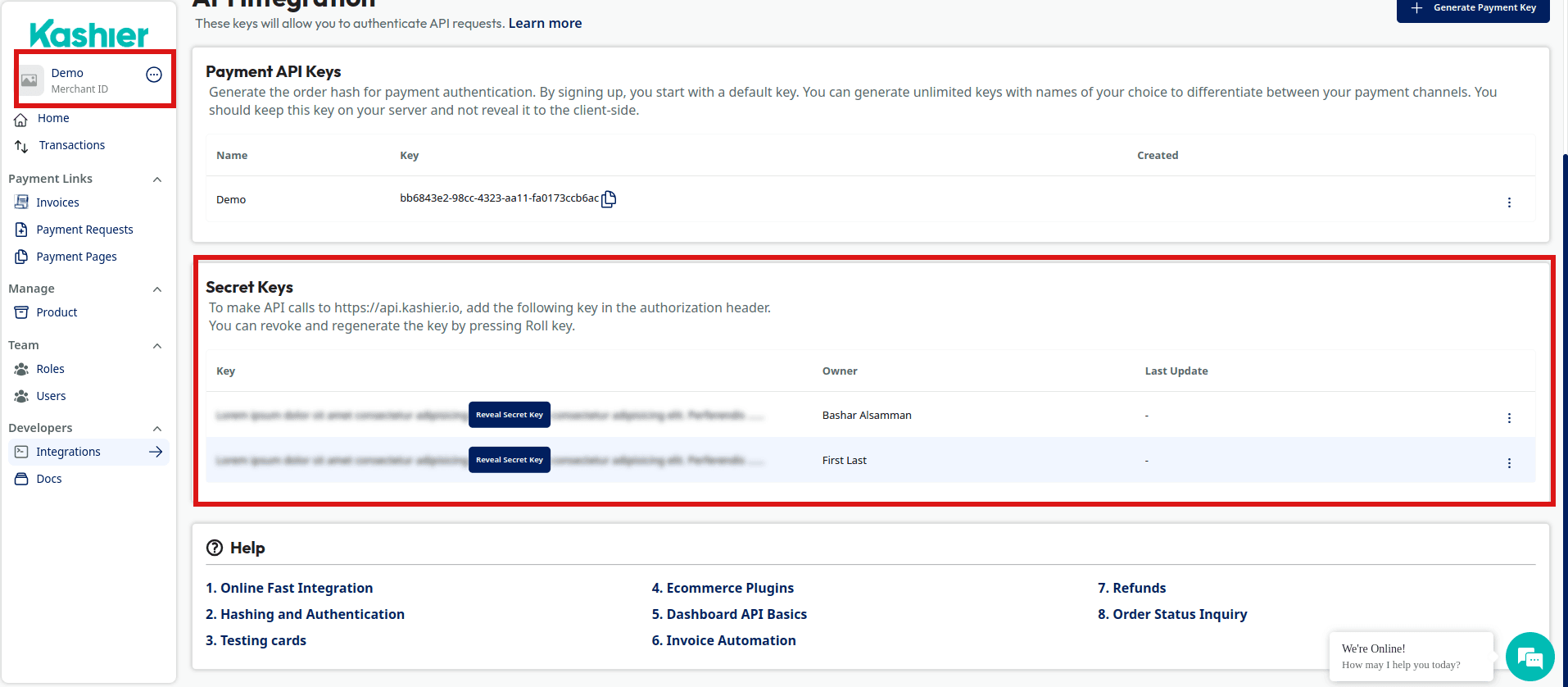
Use only your test API keys for testing and development. This ensures that you don't accidentally modify your live customers or charges.
Multi-merchant accounts: the authmerchantid header
If your user has access to more than one merchant account, include an authmerchantid header alongside your Authorization header on every Dashboard/Integration API request. Kashier resolves the active MID from this header (or from selectedMID carried in your session token); without it, a multi-merchant user has no way to tell the API which merchant a request applies to.
GET /v2/customers HTTP/1.1
Host: test-api.kashier.io
Authorization: f86a28e62b452ee94a32dc49cde00047$491a5ae27e91294e97247b742d1727600d7b17297309820c590e0cbc0d8b48bc923aa94c5501619882248e58eb7cc
authmerchantid: MID-00-000
If your user only has access to a single merchant, you can omit this header.
Managing keys and access via the API
In addition to the Dashboard, you can manage your API keys, secret keys, and IP allow-list programmatically. All of these endpoints live on the same host as your other Dashboard/Integration API calls ((test-)api.kashier.io) and are authenticated the same way — with your Secret Key in the Authorization header (plus authmerchantid if your user has access to multiple merchants).
API keys and secret keys
| Action | Method | Path |
|---|---|---|
| List your Payment API Keys | GET | /v2/merchants/api-keys |
| Create a Payment API Key | PUT | /v2/merchants/api-keys |
| Delete a Payment API Key | DELETE | /v2/merchants/api-keys/:apiKeyId |
| List your Secret Keys | GET | /v2/identity/secret-keys |
| Update a user's Secret Keys | PUT | /v2/identity/secret-keys/:userId |
| Validate a set of Secret/Payment keys | POST | /v2/merchants/validate-credentials |
IP allow-list
Manage the IP allow-list that restricts which IPs may use your Secret Key:
| Action | Method | Path |
|---|---|---|
| List allow-listed IPs | GET | /v2/ip-address |
| Add an IP to the allow-list | POST | /v2/ip-address |
| Get a single allow-list entry | GET | /v2/ip-address/:ipId |
| Update an allow-list entry | PUT | /v2/ip-address/:ipId |
| Remove an IP from the allow-list | DELETE | /v2/ip-address/:ipId |
| Enable or disable the entire allow-list | PUT | /v2/ip-address/toggle-all |
Test and live modes
The test and live modes function almost identically for integration testing and education, with a few necessary differences:
- In test mode, payments are not processed by card networks or payment providers, and only our test payment information can be used.
- Payment and Secret Keys differ for each mode.
- Base URLs are prefixed with 'test-'.
- You may use and test features before being onboarded and activated.
The status of the created account will be marked as a "Test" account by default. This will allow you to test all of Kashier's services. When you finish your testing phase, you should switch to live mode and obtain your live keys if you are onboarded and activated.
Switch between test and live modes using the "It's live data" toggle from the sidebar, as shown below.
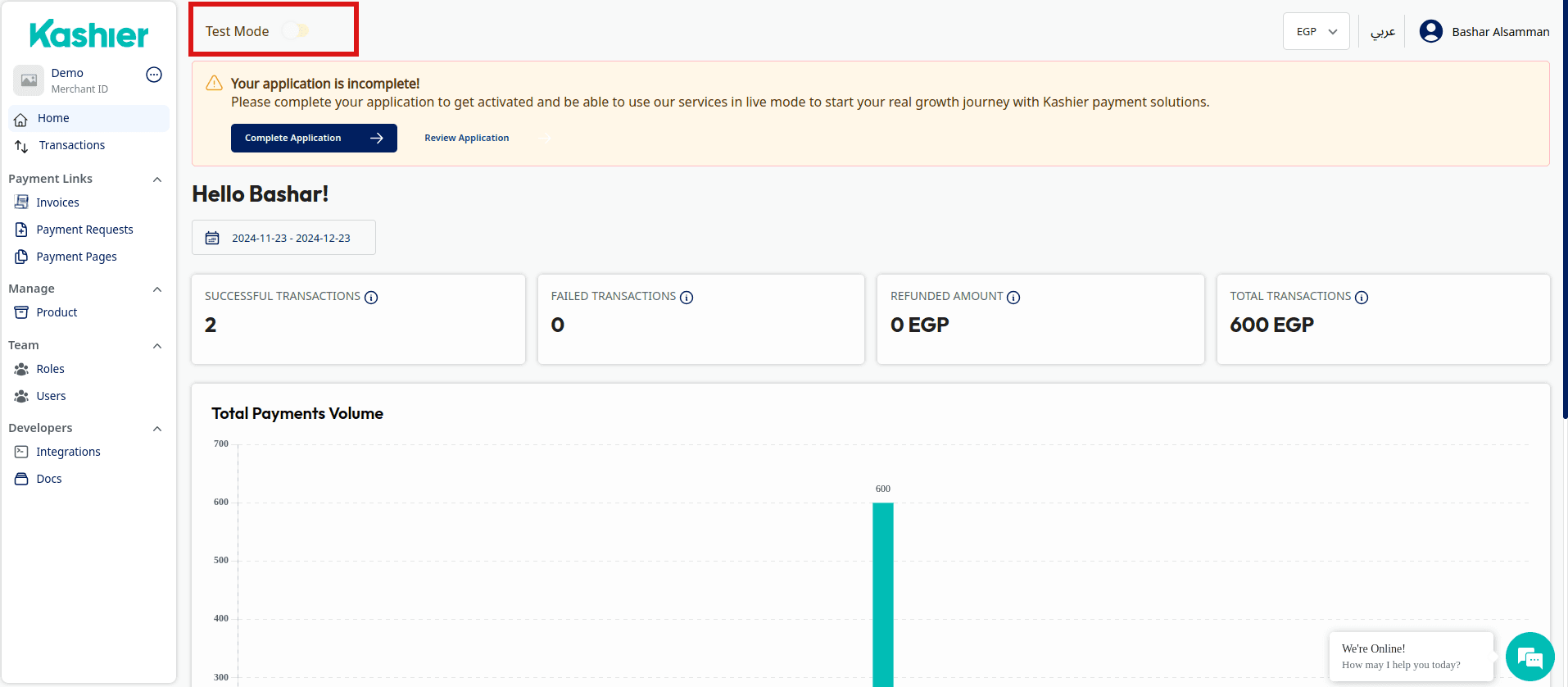
Always ensure you are in the correct mode by checking the mode toggle at the bottom of the side navigation bar. Verify that you are using the correct keys for your intended mode.
A test Payment API Key never validates against a live host
Kashier only matches a Payment API Key whose mode equals the host's mode. A test key validates only on the test- hosts and a live key only on the live hosts, so a mode mismatch fails request hashing even when the formula is correct. This is the most common cause of an "invalid hash" error.