
Flutter SDK
Accept cards, wallets, and Apple Pay in your Flutter app
A complete, code-accurate guide to installing, configuring, and shipping Kashier payments in a Flutter app — Apple Pay, mobile wallets, and cards — from a single API call.
| Field | Value |
|---|---|
| Version | 0.1.1 |
| Audience | Merchant developers integrating Kashier payments into Flutter apps |
| Package | pub.dev/packages/kashier_flutter_sdk |
SDK overview and prerequisites
The Kashier Flutter SDK is a drop-in payment library that lets your Flutter app accept payments from Egyptian customers through Apple Pay, mobile wallets (Vodafone Cash and others), and credit / debit cards (with 3-D Secure and saved cards) — all from a single API call.
The SDK ships its own pre-built payment sheet UI. You hand it a session ID from your backend, and it picks the right method, renders the right screens, handles 3DS WebViews, polls for wallet reconciliation, and calls back with a typed result.
What you can do
- Accept Apple Pay payments on iOS using your own Apple Pay Merchant ID (per-merchant — see the Apple Pay section).
- Accept mobile wallet payments (Vodafone Cash and other R2P-compatible Egyptian wallets) with built-in polling.
- Accept card payments (new card, saved card, 3-D Secure) without ever touching raw card data — the SDK handles tokenization and the 3DS WebView.
- Switch between test and live environments at initialization time.
- Render the SDK UI in Arabic or English, switchable at runtime.
Supported platforms
| Requirement | Minimum |
|---|---|
| Flutter | 3.22.0 |
| Dart | 3.4.0 |
| iOS deployment target | 14.0 |
| Android | inherits Flutter default minSdk (typically 21) |
| Apple device | iPhone with Face ID or Touch ID for Apple Pay |
| Account | Active Kashier merchant account |
Method and platform matrix
| Payment method | iOS | Android |
|---|---|---|
| Apple Pay | Yes | No (degrades gracefully) |
| Mobile wallet (Vodafone Cash, …) | Yes | Yes |
| Card (new) | Yes | Yes |
| Card (saved) | Yes | Yes |
| 3-D Secure | Yes | Yes |
The SDK's native layer is iOS-only (Swift + PassKit for Apple Pay). Wallet and card flows are pure Dart (HTTP + WebView) and run on both platforms.
Architecture at a glance
┌────────────────────────────────────────────────────────┐
│  Your Flutter App                                       │
│  └── KashierPaymentProvider  ◀─ wraps MaterialApp      │
│       └── MaterialApp / Router                          │
└────────────────────────────────────────────────────────┘
                       │
                       ▼  KashierSDK.startPayment(sessionId, …)
┌────────────────────────────────────────────────────────┐
│  Kashier SDK (Dart)                                     │
│  ┌──────────────┐  ┌──────────────┐  ┌──────────────┐   │
│  │ Apple Pay    │  │ Wallet       │  │ Card + 3DS   │   │
│  │ Handler      │  │ Handler      │  │ Handler      │   │
│  └──────────────┘  └──────────────┘  └──────────────┘   │
│         │                                               │
│         ▼ MethodChannel                                 │
│  ┌──────────────────────────────────────────────────┐   │
│  │ KashierBridge (iOS only) → PassKit (Apple Pay)   │   │
│  └──────────────────────────────────────────────────┘   │
└────────────────────────────────────────────────────────┘
                       │
                       ▼  HTTPS
┌────────────────────────────────────────────────────────┐
│  Kashier API + FEP (test or live)                       │
└────────────────────────────────────────────────────────┘- Apple Pay crosses the native bridge three times (DOWN: present sheet with merchant ID, UP: encrypted token, DOWN: finalize sheet).
- Wallet and card flows are pure Dart with HTTP + WebView — no native bridge needed.
Prerequisites
- An active Kashier merchant account.
- Your Kashier API credentials (available in your Kashier Dashboard).
- A backend server capable of creating payment sessions on Kashier's API.
- For Apple Pay only: your own Apple Pay Merchant ID and a payment processing certificate.
What is a session ID?
A session ID is a unique identifier created by your backend that represents a single payment transaction. Your backend calls Kashier's Payment Sessions API with the amount, currency, allowed methods, and customer details, and Kashier returns a session ID.
Your Flutter app then passes only that session ID to the SDK — no API key, no Kashier merchant ID, no card data ever lives in the mobile binary.
Your Backend ──POST /sessions──▶ Kashier API
                                      │
              session_id ◀────────────┘
                  │
                  ▼
            Your Flutter app
                  │
                  ▼ KashierSDK.startPayment(sessionId)
            Kashier SDK
Backend integration is out of scope for this guide. See the Payment Sessions API documentation for backend details.
Installation and setup
Add the dependency
Add the SDK from pub.dev to your pubspec.yaml:
dependencies:
  kashier_flutter_sdk: ^0.1.1
Then install:
flutter pub getThe SDK pulls in these transitive dependencies (no action needed — listed for transparency):
| Package | Version | Used for |
|---|---|---|
| http | ^1.2.0 | Kashier API / FEP calls |
| webview_flutter | ^4.0.0 | 3DS challenge container |
| flutter_inappwebview | ^6.0.0 | 3DS WebView |
| connectivity_plus | ^7.1.1 | Pre-flight offline checks |
| flutter_svg | ^2.0.10 | Sheet iconography |
| plugin_platform_interface | ^2.0.2 | Platform channel contract |
| meta | ^1.16.0 | @internal annotations |
iOS setup
Open ios/Podfile and ensure the platform is at least iOS 14.0:
platform :ios, '14.0'Install the iOS pods:
cd ios && pod installApple Pay requires per-merchant configuration (your own Apple Merchant ID, an Xcode entitlement, and a payment processing certificate). Follow the runbook in the Apple Pay section before enabling it.
Android setup
The SDK requires only the standard INTERNET permission, which is already part of the default Flutter AndroidManifest.xml. No extra setup is needed.
Apple Pay is iOS-only. The SDK has no native Android code — wallet and card flows are pure Dart. On Android, KashierSDK.isApplePayAvailable() returns false and the unified payment sheet automatically hides the Apple Pay option.
Wrap your app with KashierPaymentProvider
The SDK renders its payment sheet on its own overlay, outside your app's Navigator. To enable that overlay, wrap your MaterialApp (or CupertinoApp / MaterialApp.router) with KashierPaymentProvider:
import 'package:flutter/material.dart';
import 'package:kashier_flutter_sdk/kashier_flutter_sdk.dart';

void main() {
  runApp(
    KashierPaymentProvider(
      child: MaterialApp(
        home: HomeScreen(),
      ),
    ),
  );
}
This works with any navigation solution: Navigator 2.0, GoRouter, AutoRoute, nested navigators, etc.
Why this is required: because the provider holds the overlay, you can call KashierSDK.startPayment(...) from anywhere — no BuildContext required. The SDK manages its own UI lifecycle and never pushes onto your routes.
Initialize the SDK
Call KashierSDK.initialize() once before starting any payment — typically at app startup or in the initState of the screen that triggers payment:
KashierSDK.initialize(
  mode: KashierMode.test,                       // or KashierMode.live
  language: KashierLanguage.en,                 // or KashierLanguage.ar
  appleMerchantId: 'merchant.com.yourcompany.app', // iOS Apple Pay only
);| Parameter | Type | Required | Default | Description |
|---|---|---|---|---|
| mode | KashierMode | yes | — | test (sandbox) or live (production) |
| language | KashierLanguage | no | en | UI language for the payment sheet |
| appleMerchantId | String? | no | null | Your own Apple Pay Merchant ID. Required only to enable Apple Pay; must match the Merchant ID in your Xcode entitlement. When omitted, Apple Pay is not offered. |
Switching language at runtime: call initialize() again with the new KashierLanguage. There is no separate setter — re-initialization is the supported pattern. It disposes the previous API client and re-registers payment handlers.
Quick start
End-to-end integration in under 60 lines:
import 'package:flutter/material.dart';
import 'package:kashier_flutter_sdk/kashier_flutter_sdk.dart';

void main() {
  runApp(
    KashierPaymentProvider(
      child: const MyApp(),
    ),
  );
}

class MyApp extends StatelessWidget {
  const MyApp({super.key});

  @override
  Widget build(BuildContext context) {
    return MaterialApp(
      home: CheckoutScreen(),
    );
  }
}

class CheckoutScreen extends StatefulWidget {
  @override
  State<CheckoutScreen> createState() => _CheckoutScreenState();
}

class _CheckoutScreenState extends State<CheckoutScreen> {
  @override
  void initState() {
    super.initState();
    KashierSDK.initialize(
      mode: KashierMode.test,
      language: KashierLanguage.en,
      appleMerchantId: 'merchant.com.yourcompany.app', // omit if not using Apple Pay
    );
  }

  void _pay() {
    KashierSDK.startPayment(
      sessionId: 'sess_abc123', // from your backend
      onSuccess: (KashierPaymentResult result) {
        print('Paid: ${result.transactionId}');
      },
      onPending: (KashierPaymentPending pending) {
        print('Unconfirmed — reconcile server-side: ${pending.orderId}');
      },
      onFailure: (KashierPaymentError error) {
        if (error.code == KashierErrorCode.userCancelled) return;
        print('Failed: ${error.message}');
      },
    );
  }

  @override
  Widget build(BuildContext context) {
    return Scaffold(
      body: Center(
        child: ElevatedButton(
          onPressed: _pay,
          child: const Text('Pay'),
        ),
      ),
    );
  }
}
That's the entire integration. The SDK reads the session, renders the method-selection sheet (Apple Pay, Wallet, Card — whichever the session and device support), runs the chosen flow, and fires exactly one callback when done.
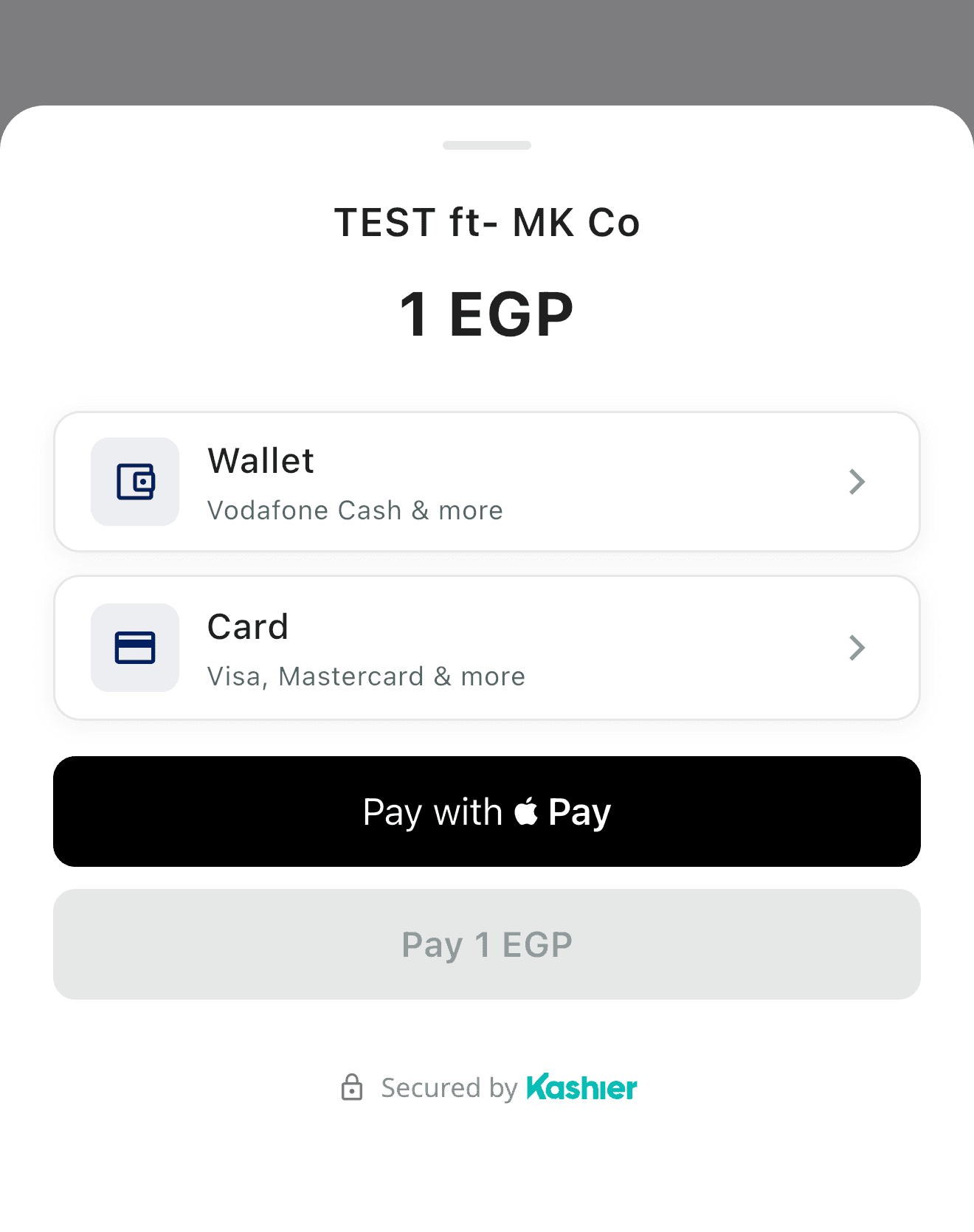
A complete runnable sample lives in example/lib/main.dart.
Apple Pay integration guide
Apple Pay is iOS-only. Unlike wallet and card, it requires one-time per-merchant setup: you bring your own Apple Pay Merchant ID and pass it to initialize(). The unified payment sheet is the recommended path because it handles availability, fallback, and method selection automatically. Use the standalone Apple Pay button only if you want to launch Apple Pay directly without showing a method picker.
The per-merchant model
Each merchant uses their own Apple Pay Merchant ID — there is no shared/bundled Kashier identifier. The ID you register with Apple is:
- Passed to the SDK via
KashierSDK.initialize(appleMerchantId: …). - Carried DOWN to native PassKit and set as
PKPaymentRequest.merchantIdentifier. - Backed by your own Apple Pay Payment Processing Certificate so Kashier can decrypt the resulting token for your account.
If appleMerchantId is null or empty, the SDK cannot build a valid Apple Pay request — isApplePayAvailable() returns false and Apple Pay is hidden from the sheet.
Enable and configure runbook
Complete these steps once per merchant app.
-
Register an Apple Pay Merchant ID. Apple Developer portal → Certificates, Identifiers & Profiles → Identifiers → Merchant IDs → +. Use a reverse-DNS identifier, e.g.
merchant.com.yourcompany.app. -
Create a Payment Processing Certificate in your own Apple Developer account (Merchant IDs → your Merchant ID → Apple Pay Payment Processing Certificate), from a CSR with an EC P-256 private key. Then, in the Kashier dashboard under Settings > Device Payment Configuration > Apple Pay, turn on Use my own certificates, enter your Merchant ID and upload the certificate with its private key — see Upload your certificates to Kashier. Native apps need only the processing certificate; the Merchant Identity Certificate and domain verification are not needed for apps.
-
Add the Apple Pay capability in Xcode. Open
ios/Runner.xcworkspace→ select the Runner target → Signing & Capabilities → + Capability → Apple Pay, then check your Merchant ID. This writes the entitlement intoios/Runner/Runner.entitlements:
<key>com.apple.developer.in-app-payments</key>
<array>
  <string>merchant.com.yourcompany.app</string>
</array>- Pass the Merchant ID to the SDK. The value here must match the entitlement exactly:
KashierSDK.initialize(
  mode: KashierMode.live,
  appleMerchantId: 'merchant.com.yourcompany.app',
);- Verify availability on a physical device with a card in Apple Wallet:
final ok = await KashierSDK.isApplePayAvailable(); // expect trueIf isApplePayAvailable() returns false after setup, check (in order): you passed appleMerchantId; it matches the entitlement; you're on a real device (not Simulator); a supported card is in Apple Wallet.
Check availability
final available = await KashierSDK.isApplePayAvailable();
if (available) {
  // Render Apple Pay button or include in payment sheet
} else {
  // Fall back to other methods
}
isApplePayAvailable() returns false when:
appleMerchantIdwas not supplied toinitialize()(or is empty).- Running on Android or any non-iOS platform.
- Running on iOS Simulator (no real Wallet).
- The user has not added any supported card to Apple Wallet.
- The device hardware does not support Apple Pay.
Display the Apple Pay button (optional, direct-launch)
The SDK ships a styled KashierApplePayButton widget for merchants who want to skip the method-selection sheet:
KashierApplePayButton(
  onPressed: () {
    KashierSDK.startPayment(
      sessionId: 'sess_abc123',
      onSuccess: (result) { /* … */ },
      onFailure: (error) { /* … */ },
    );
  },
  height: 50,        // optional, default 50
  cornerRadius: 10,  // optional, default 10
)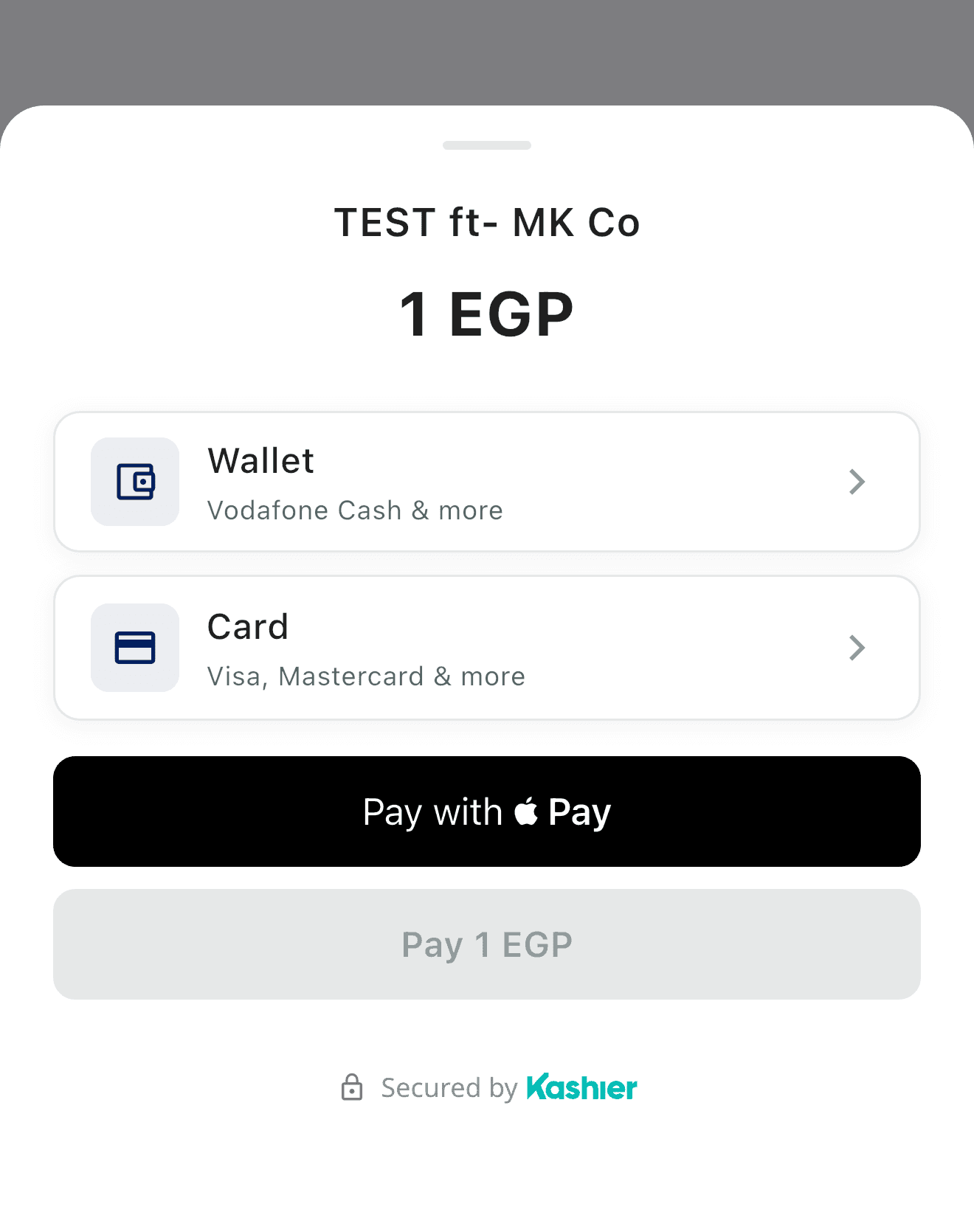
The button label flips automatically between English (Pay with Pay) and Arabic (ادفع مع Pay). The Apple logo glyph (U+F8FF) renders correctly on Apple devices.
The button is a Flutter widget (not the native PKPaymentButton) so it renders identically across iOS versions and respects your theme. Tapping it does not start a payment automatically — wire that in onPressed, typically by calling KashierSDK.startPayment(...).
End-to-end Apple Pay flow
The validation handshake has been removed — the flow now crosses the native bridge three times:
| # | Direction | Bridge call | Payload |
|---|---|---|---|
| 1 | Dart → Swift | presentApplePay | amount, currency, storeName, supportedNetworks, merchantId |
| 2 | Swift → Dart | token callback | { paymentData, paymentMethod{displayName, network, type}, transactionIdentifier } |
| 3 | Dart → Swift | completePaymentAuthorization | { success: bool } (finalizes the sheet) |
Native PassKit builds the PKPaymentRequest with merchantIdentifier = merchantId, countryCode = "EG", merchantCapabilities = .capability3DS, and the resolved networks (visa, mastercard, meeza, amex).
Callbacks
| Event | Callback fired | Notes |
|---|---|---|
| FEP returns 200 | onSuccess(KashierPaymentResult) | result.card.wallet == "APPLE_PAY" |
| User taps Cancel in Apple Pay sheet | onFailure | code == userCancelled. Don't show error UI — the user knows they cancelled |
| Token processing failure | onFailure | tokenProcessingFailed — FEP could not process the token |
| Misconfiguration / Simulator / missing merchant ID | onFailure | applePayConfigError or applePayNotAvailable |
Apple Pay never fires onPending.
Platform fallback
On Android (or any non-iOS platform), KashierApplePayButton still renders but onPressed will surface applePayNotAvailable from startPayment. Use isApplePayAvailable() to gate the button, or rely on the unified payment sheet which hides Apple Pay automatically on unsupported platforms.
Unified payment sheet
The recommended integration path. One call, every method, automatic device gating.
KashierSDK.startPayment(
  sessionId: 'sess_abc123',
  onSuccess: (result) { /* … */ },
  onFailure: (error) { /* … */ },
  onPending: (pending) { /* … */ },  // terminal, for card + wallet flows
);
The SDK:
- Fetches session details from Kashier (
GET /sessions/{id}). - Computes which methods to show by intersecting registered methods, session-allowed methods, and device capability.
- Renders the method-selection sheet on its own overlay.
- Runs the chosen flow (Apple Pay / Wallet / Card) end-to-end.
- Calls one of
onSuccess,onFailure, oronPending. For both card and wallet,onPendingis terminal.
How method visibility is decided
A method appears in the sheet only if all three are true:
| Check | Source | Notes |
|---|---|---|
| Registered in SDK | KashierSDK._registerHandler(...) | applePay, wallet, card all registered in v1 |
| Allowed by the session | session.allowedMethods | Empty list = all methods allowed |
| Available on device | isAvailable() | e.g., Apple Pay → merchant ID set + PassKit + cards present |
Special case: Apple Pay is unlocked when allowedMethods contains either "applePay" or "card" — Apple Pay is treated as a card method on the backend.
Session knobs that affect the sheet
Set these on your backend when creating the session (see Payment Sessions API):
| Field | Type | Effect |
|---|---|---|
| allowedMethods | comma-separated string | Which methods appear: "APPLEPAY,WALLET,CARD". Omit or send empty to allow all. |
| supportedNetworks | list | Card networks for Apple Pay (visa, mastercard, meeza). Defaults to all three. |
| enable3DS | bool | Whether card payments require 3-D Secure |
| saveCard | string | "optional" (checkbox shown), "forced" (always saves), "hidden" (no save UI), or omit (same as hidden) |
| retrieveSavedCard | bool | Whether to fetch the customer's saved cards into the picker |
| brandColor | hex string | Accent color for the payment sheet (see below) |
| customer | object | Customer info displayed and posted with the card payment |
brandColor formats accepted: 6-digit RRGGBB or 8-digit AARRGGBB, with or without a leading # (e.g., "#FF5733", "FF5733", "#CCFF5733"). A 6-digit value is treated as fully opaque. Null, empty, or unparseable values fall back to the Kashier primary color #001F5F.
Localization
Sheet headers, button labels, success / failure copy, error messages, and pending copy all flip to Arabic when the SDK is initialized with KashierLanguage.ar. Supported languages: en, ar.
Sheet lifecycle
- The sheet appears above your existing UI on the
KashierPaymentProvideroverlay. - Only one sheet can be visible at a time.
- The sheet dismisses itself when the flow completes (success, failure, or user dismissal).
- For wallet payments, the sheet remains visible while polling.
Wallet payment integration guide
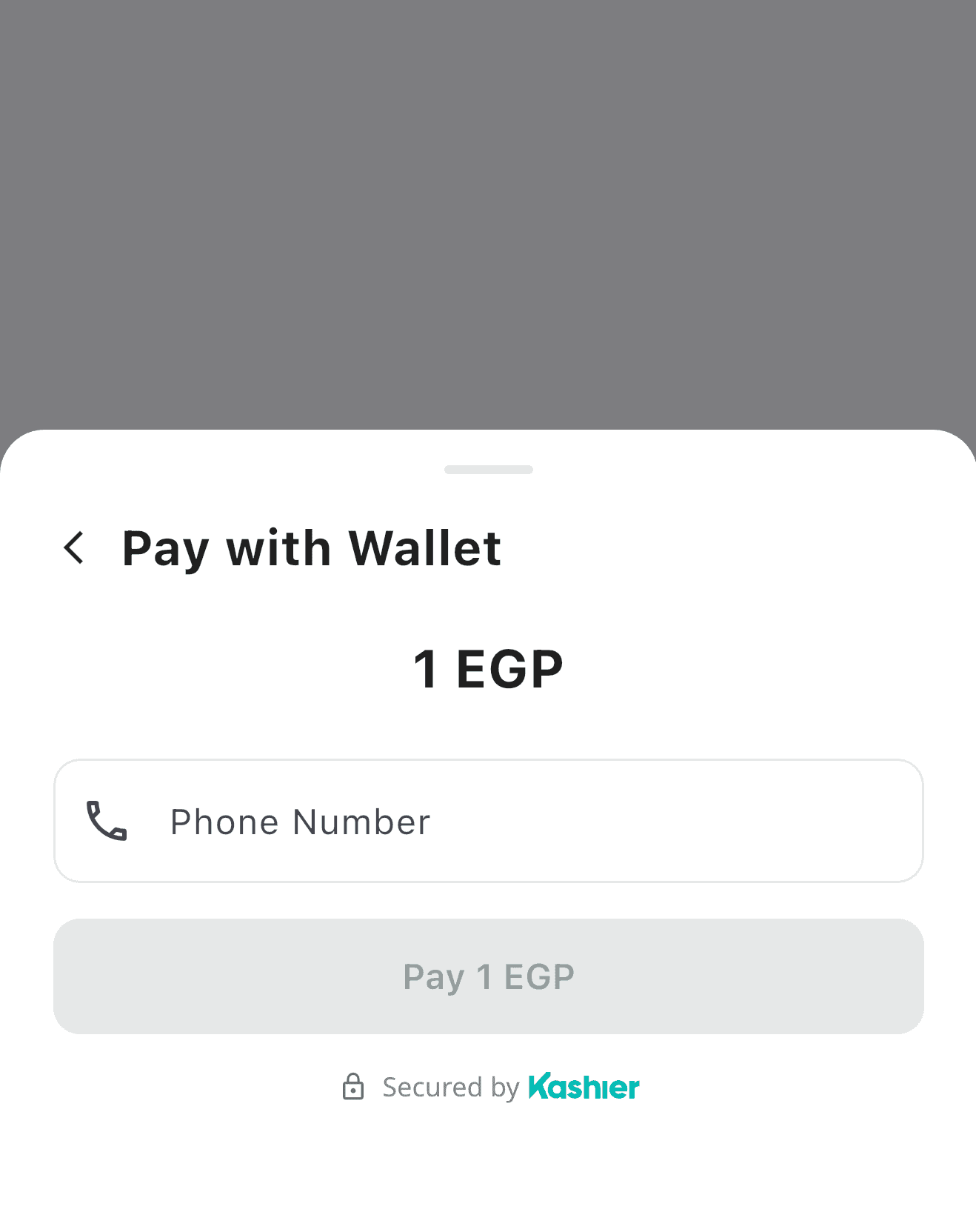
Mobile-wallet payments (Vodafone Cash and other Egyptian R2P-compatible wallets) are an out-of-band flow: your customer enters their phone number in the SDK, then completes the payment in their wallet's own app. The SDK polls Kashier for reconciliation and fires onSuccess or onFailure when the wallet confirms. If reconcile polling runs the full 5 minutes without a terminal result, the SDK shows an "I have paid" button; tapping it fires the terminal onPending callback.
Wallet flow
1. User picks "Wallet" in the unified sheet.
2. Sheet shows phone-number input.
3. SDK calls INITIATE_R2P (POST /v3/orders, apiOperation=INITIATE_R2P) — no callback fires yet.
4. User opens their wallet app and approves the charge.
5. SDK polls reconcile on a fixed schedule capped at 5 minutes total:
     - Phase 1: 12 attempts, 10s apart (120s).
     - Phase 2: increasing intervals (30s, 45s, 60s, …) until the 5-min cap.
6. Outcome:
     a. Confirmed → onSuccess(KashierPaymentResult)
     b. Declined → onFailure(KashierPaymentError)
     c. Still pending at the 5-min cap → SDK shows an "I have paid" button.
        Customer taps it → terminal onPending(KashierPaymentPending) fires
        (if implemented) and the sheet closes. Cancel → onFailure(userCancelled).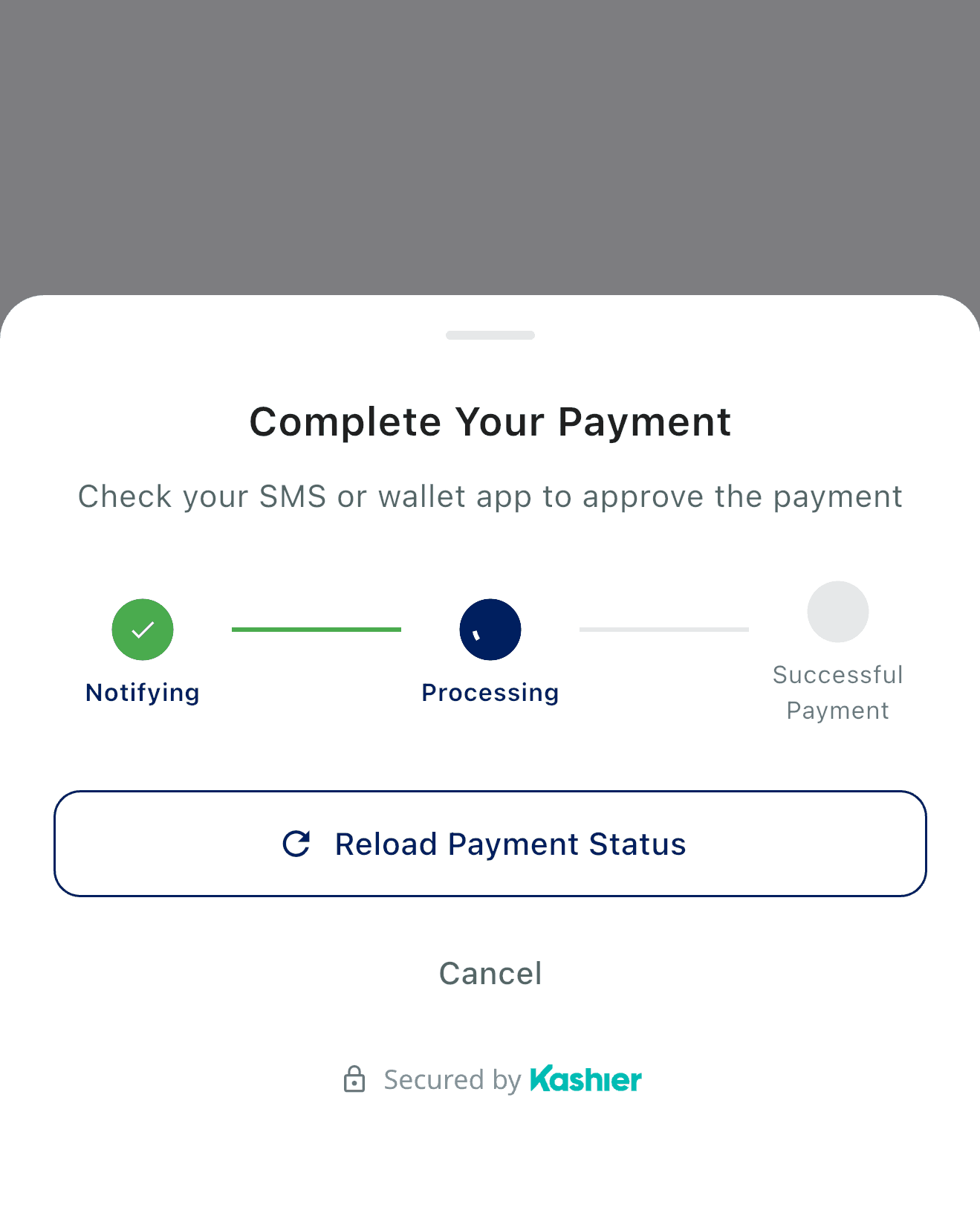
Polling schedule, precisely: Phase 1 is 12 fixed 10-second intervals (120s). Phase 2 intervals are 30s, 45s, 60s, then 90s/120s/180s — but the SDK never dispatches a request that would cross the 300-second (5-minute) hard cap, so only the 30s/45s/60s Phase-2 attempts are reachable in practice. The cap is 5 minutes total, not 10.
Wiring onPending
onPending is optional and terminal for wallet: it fires at most once, only when reconcile polling exhausts after 5 minutes with the payment still pending and the customer taps "I have paid". It does not fire at initiation, and no onSuccess/onFailure follows it.
KashierSDK.startPayment(
  sessionId: 'sess_abc123',
  onSuccess: (KashierPaymentResult result) {
    // Wallet confirmed the payment
    showSuccessScreen(result);
  },
  onPending: (KashierPaymentPending pending) {
    // Polling exhausted while still pending and the customer asserted payment.
    // Confirm final settlement server-side using the orderId.
    print('Pending order: ${pending.orderId}');  // authoritative reference
    print('Status: ${pending.message}');         // localized
  },
  onFailure: (KashierPaymentError error) {
    showErrorScreen(error);
  },
);
Card vs wallet pending: the same onPending callback has unified semantics across card and wallet — it is terminal in both, firing after reconcile polling exhausts while the payment is still settling. For both, orderId is authoritative, transactionId may be empty, and you should confirm final settlement via webhook/backend.
What KashierPaymentPending contains
| Field | Type | Description |
|---|---|---|
| orderId | String | Kashier order ID (authoritative reference) |
| transactionId | String | Transaction ID (e.g., "TX-35524544764"; may be empty) |
| message | String | Status message (localized to SDK language) |
| messageEn | String? | English status message |
| messageAr | String? | Arabic status message |
Wallet provider hint (KashierWalletProvider)
enum KashierWalletProvider {
  vodafoneCash,  // displayNameEn: "Vodafone Cash" | displayNameAr: "فودافون كاش"
  other,         // displayNameEn: "Mobile Wallet" | displayNameAr: "محفظة إلكترونية"
}
The SDK uses this enum internally to label wallet methods in the sheet. You do not need to instantiate it.
Polling cap and webhook fallback
The SDK polls for up to 5 minutes total. If the wallet user does not complete in time and the payment is still pending at the cap, the SDK shows the "I have paid" button (→ terminal onPending); an outright timeout surfaces onFailure(paymentTimeout). The session itself may still settle later — your backend should rely on the server-to-server webhook (session.serverWebhook) as the source of truth, not solely on the SDK callback.
Card payment integration guide
Card payments handle four sub-flows from a single entry point: new card, saved card, 3-D Secure, and (optionally) save-card-after-payment. The unified sheet renders the card form, runs validation, opens the 3DS WebView when the issuer requires it, reconciles, and reports back via onSuccess / onFailure / onPending.
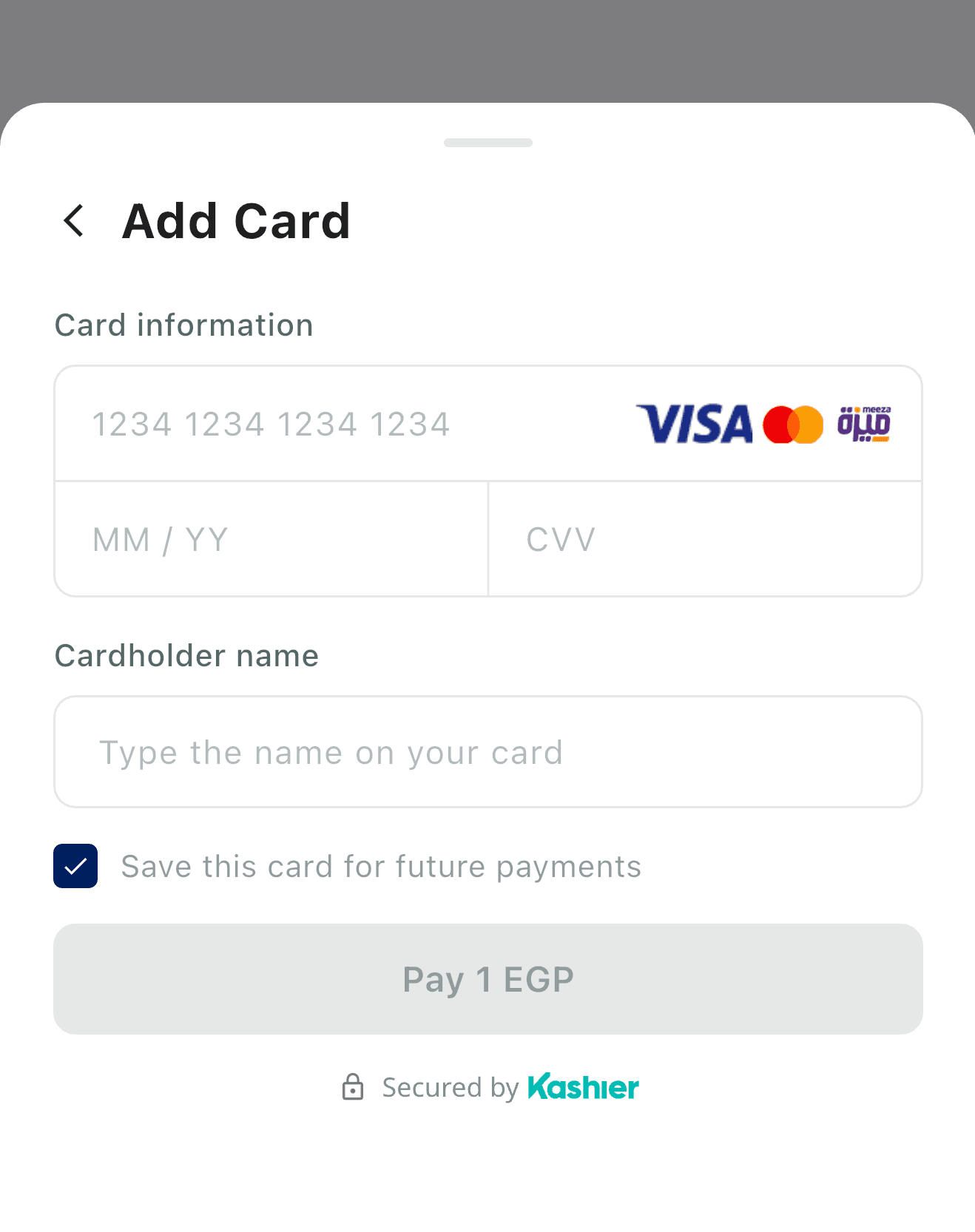
New-card flow
- User picks "Card" in the sheet → card form appears.
- SDK validates card number, expiry, CVV, holder name inline before submitting.
- SDK posts to Kashier card endpoint, receives the card response.
- If 3DS is required → SDK opens an in-sheet WebView at the issuer's redirect URL.
- After the OTP is submitted, the SDK reconciles on the post-OTP schedule.
- SDK fires
onSuccess,onFailure, or terminalonPending(if reconcile exhausts while still settling).
Saved-card flow
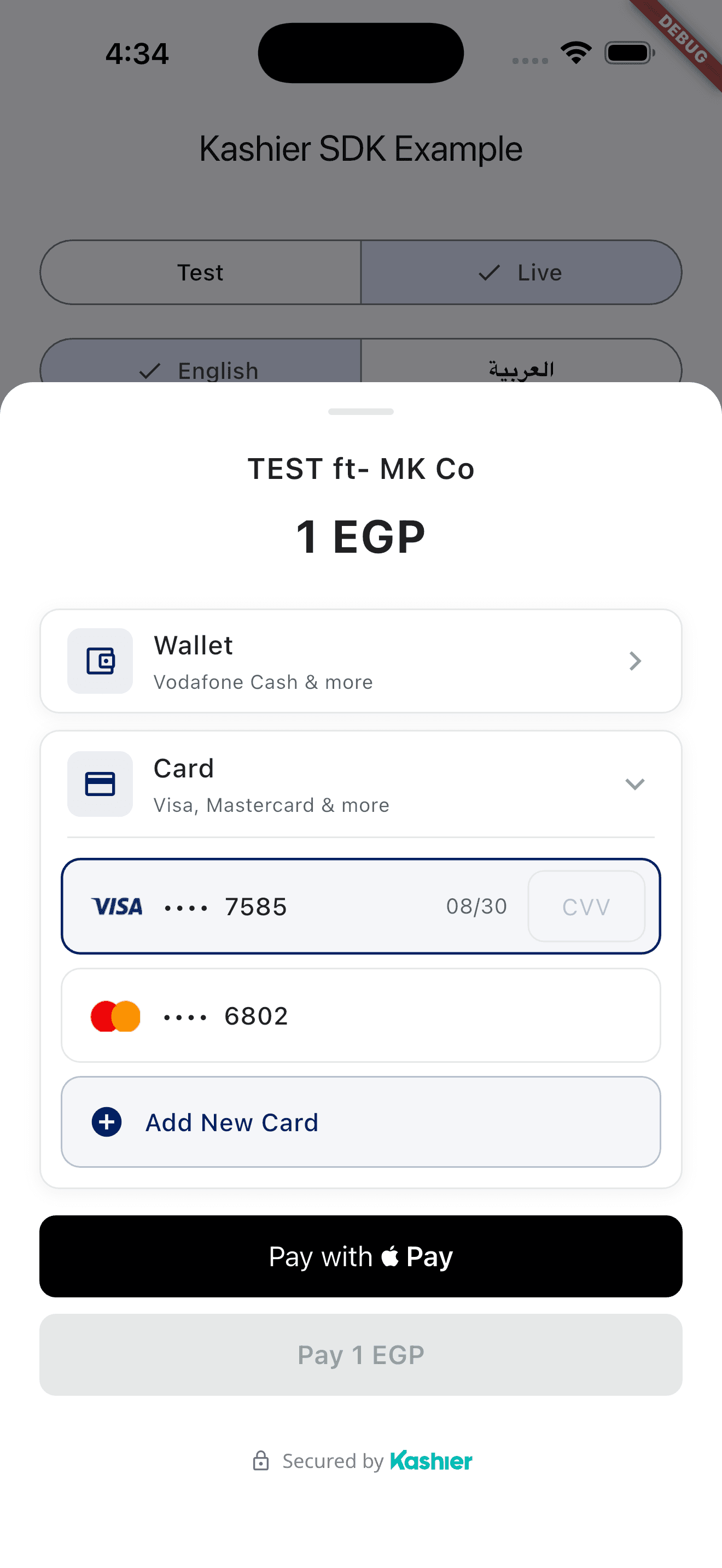
When session.retrieveSavedCard == true, the sheet shows the customer's previously-saved cards as selectable chips:
- User taps a saved card → CVV-only prompt appears (CVV is never stored).
- SDK posts the saved card token + CVV → same 3DS / reconcile flow as new card.
- SDK fires
onSuccess/onFailure/onPending.
Save-card-after-payment
Controlled by session.saveCard:
| Value | Behavior |
|---|---|
| "optional" | Save-card checkbox shown; user opts in |
| "forced" | Card is always saved (checkbox shown but locked on) |
| "hidden" | No save UI |
| null | Same as "hidden" — no save behavior, no UI |
The customer's saved cards live on Kashier's side, keyed by the customer reference in the session. They are never persisted in the SDK or your app.
3-D Secure (3DS) and reconciliation
When the issuer mandates 3DS, the SDK opens the issuer's challenge URL in an embedded flutter_inappwebview view.
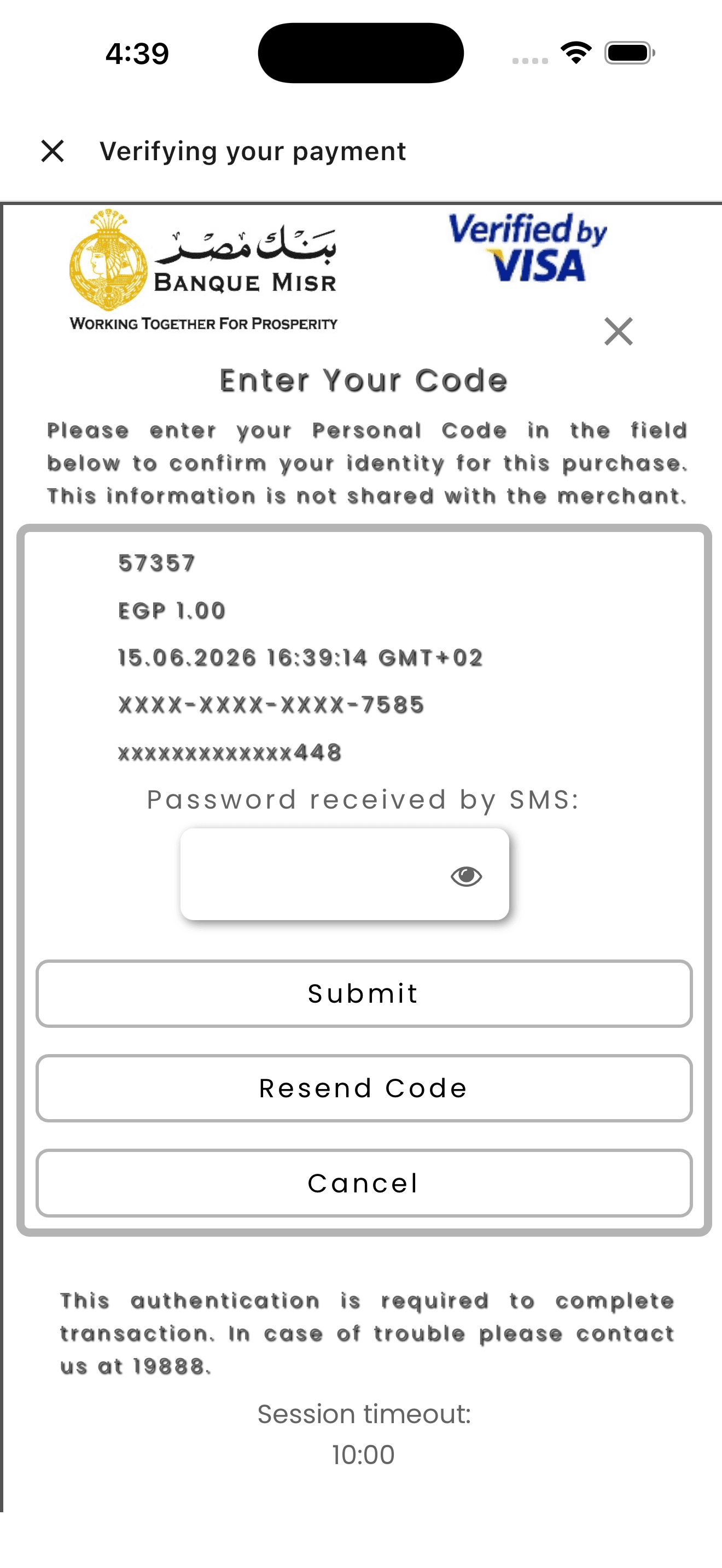
After the user submits the OTP, the WebView closes when Kashier's redirect URL is hit and the SDK reconciles on the post-OTP schedule:
- Post-OTP reconcile: 8 attempts over ~60s — four 5-second intervals, then four 10-second intervals.
- If a terminal result arrives →
onSuccess/onFailure. - If the schedule exhausts while still settling → terminal
onPending(KashierPaymentPending).
If the user cancels the 3DS challenge (taps the close button), the SDK does not fail immediately. It switches to a "verifying" view and runs a cancel safety-net reconcile — 5 attempts at 0s, 5s, 10s, 15s, 30s (~60s) — in case the payment actually went through. Terminal result found → onSuccess / onFailure; nothing found after exhaustion → onFailure(userCancelled).
If 3DS is disabled on the session (session.enable3DS == false) or not required by the issuer, the SDK skips the WebView entirely.
What can fail
| Error code | Cause |
|---|---|
| paymentDeclined | Issuer or processor declined the card |
| authorizationFailed | 403 from Kashier (invalid hash, bad merchant config) |
| authenticationFailed | 3DS challenge failed (e.g., wrong OTP) |
| invalidCardDetails | Card field validation failed before submit |
| cardRetrievalFailed | Could not load saved cards (sheet falls back to new-card form) |
| cardDeletionFailed | Could not delete a saved card from the picker |
| networkError | No internet at the time of the call |
All map to KashierPaymentError with a localized message and optional issuer responseCode.
PCI scope
Card data is collected by the SDK's own form, tokenized against Kashier FEP, and never persisted in your app. Your app stays out of PCI scope as long as you use the SDK's card form — do not build your own card form against the same endpoints.
Complete API reference
Everything below is exported from a single import:
import 'package:kashier_flutter_sdk/kashier_flutter_sdk.dart';Public surface: KashierSDK, KashierPaymentProvider, KashierApplePayButton, KashierMode, KashierLanguage, KashierWalletProvider, KashierErrorCode, KashierPaymentResult, KashierCardInfo, KashierPaymentError, KashierPaymentPending.
KashierSDK (static API)
The main entry point. All members are static.
initialize
static void initialize({
  required KashierMode mode,
  KashierLanguage language = KashierLanguage.en,
  String? appleMerchantId,
})
Initializes the SDK. Must be called once before any other method. Re-call to switch language or mode at runtime; this disposes the previous internal API client and re-registers payment handlers. Returns void.
startPayment
static Future<void> startPayment({
  required String sessionId,
  required void Function(KashierPaymentResult result) onSuccess,
  required void Function(KashierPaymentError error) onFailure,
  void Function(KashierPaymentPending pending)? onPending,
})
Starts a payment flow for the given session. Fetches the session, picks available methods, shows the unified sheet, and reports the outcome via callbacks. Returns Future<void> (resolves when the SDK has handed off to the sheet — not when payment completes). If initialize() was not called, fires onFailure(unknownError).
isApplePayAvailable
static Future<bool> isApplePayAvailable()Checks whether Apple Pay is available on the current device (merchant ID set + iOS + PassKit + at least one card). Returns false on non-iOS platforms, if appleMerchantId was not supplied, or if the SDK is not yet initialized.
Static getters
| Getter | Type | Description |
|---|---|---|
| isInitialized | bool | true after initialize() has been called |
| mode | KashierMode? | Current mode, or null before initialization |
| language | KashierLanguage | Current display language (defaults to en) |
Enums
KashierMode — test and live environments:
| Value | baseUrl | fepBaseUrl |
|---|---|---|
| test | https://test-api.kashier.io | https://test-fep.kashier.io |
| live | https://api.kashier.io | https://fep.kashier.io |
KashierLanguage — en (Locale('en')) and ar (Locale('ar')). KashierWalletProvider — vodafoneCash ("Vodafone Cash" / "فودافون كاش") and other ("Mobile Wallet" / "محفظة إلكترونية").
Models
KashierPaymentResult — returned by onSuccess on a terminal successful payment:
| Field | Type | Description |
|---|---|---|
| sessionId | String | The session this result belongs to |
| status | String | Payment status ("SUCCESS", "CAPTURED", etc.) |
| orderId | String? | Kashier order ID (systemOrderId) |
| orderReference | String? | Merchant order reference |
| transactionId | String? | Transaction ID (e.g., "TX-35524544753") |
| authorizationNumber | String? | Issuer authorization number |
| amount | num? | Charged amount |
| currency | String? | ISO 4217 currency code (e.g., "EGP") |
| card | KashierCardInfo? | Card / wallet details used |
| message | String? | Localized success message (English) |
| messageAr | String? | Localized success message (Arabic) |
| transactionData | Map? | Raw API response body for advanced use |
KashierCardInfo — accessed via KashierPaymentResult.card: brand (e.g. "Visa"), maskedNumber (e.g. "541674******7777"), wallet (e.g. "APPLE_PAY").
KashierPaymentError — returned by onFailure: code (KashierErrorCode), message (English), messageAr, responseCode (issuer code e.g. "57"), details. Construct via KashierPaymentError.fromCode(KashierErrorCode.networkError).
Error handling guide
All failures (including user cancellation) flow through onFailure(KashierPaymentError). Inspect error.code to decide how to respond.
Full error code table
| Code | Meaning | When it fires | Recoverable? | Recommended UX |
|---|---|---|---|---|
| sessionExpired | Session is no longer valid | Session timed out before completion | No | Mint a new session on the backend, restart |
| sessionNotFound | Session ID not recognised | Wrong / mistyped ID, or wrong env | No | Verify the ID and that mode matches backend |
| applePayNotAvailable | Apple Pay not available on device | Non-iOS, no merchant ID, no cards, Simulator | No | Hide Apple Pay; offer wallet / card |
| userCancelled | User dismissed the payment sheet | User taps Cancel | Yes | Show no error UI — silently return |
| validationFailed | Apple Pay validation failed | Pre-flight validation rejected | No | Contact Kashier support; backend issue |
| applePayConfigError | Apple Pay misconfiguration | Wrong/absent merchant ID, missing cert, Simulator | No | Re-check the runbook; contact support |
| merchantValidationFailed | Apple Pay validation failed during the session | Mid-flow validation issue | No | Contact Kashier support |
| tokenProcessingFailed | FEP could not process the Apple Pay token | FEP rejected the encrypted token | No | Retry; if persistent, contact support |
| paymentDeclined | Issuer / processor declined the card | Insufficient funds, fraud rules, etc. | Yes | Offer to retry with a different card |
| authorizationFailed | HTTP 403 — authentication failed | Invalid hash, missing credentials | No | Backend config issue; not user-recoverable |
| networkError | No internet connection | Pre-flight or mid-flight network drop | Yes | Surface "check connection, retry" |
| paymentTimeout | Wallet polling cap reached | Wallet not completed within the 5-minute cap | Yes | Show retry; webhook may still confirm later |
| walletInitFailed | INITIATE_R2P API call failed | Wallet provider unavailable | Yes | Retry, or offer card |
| cardRetrievalFailed | Could not fetch saved cards | Backend or network error | Yes | Sheet falls back to new-card form |
| cardDeletionFailed | Could not delete a saved card | Backend or network error | No | Show "try again later" |
| invalidCardDetails | Card form validation failed | Invalid PAN, expiry, CVV, etc. | Yes | Re-render the form with field errors |
| authenticationFailed | 3-D Secure failed | Wrong OTP, bank decline | Yes | Retry the card or offer another |
| unknownError | Unclassified (incl. SDK not initialized) | Any uncaught path | No | Log error.details; contact support |
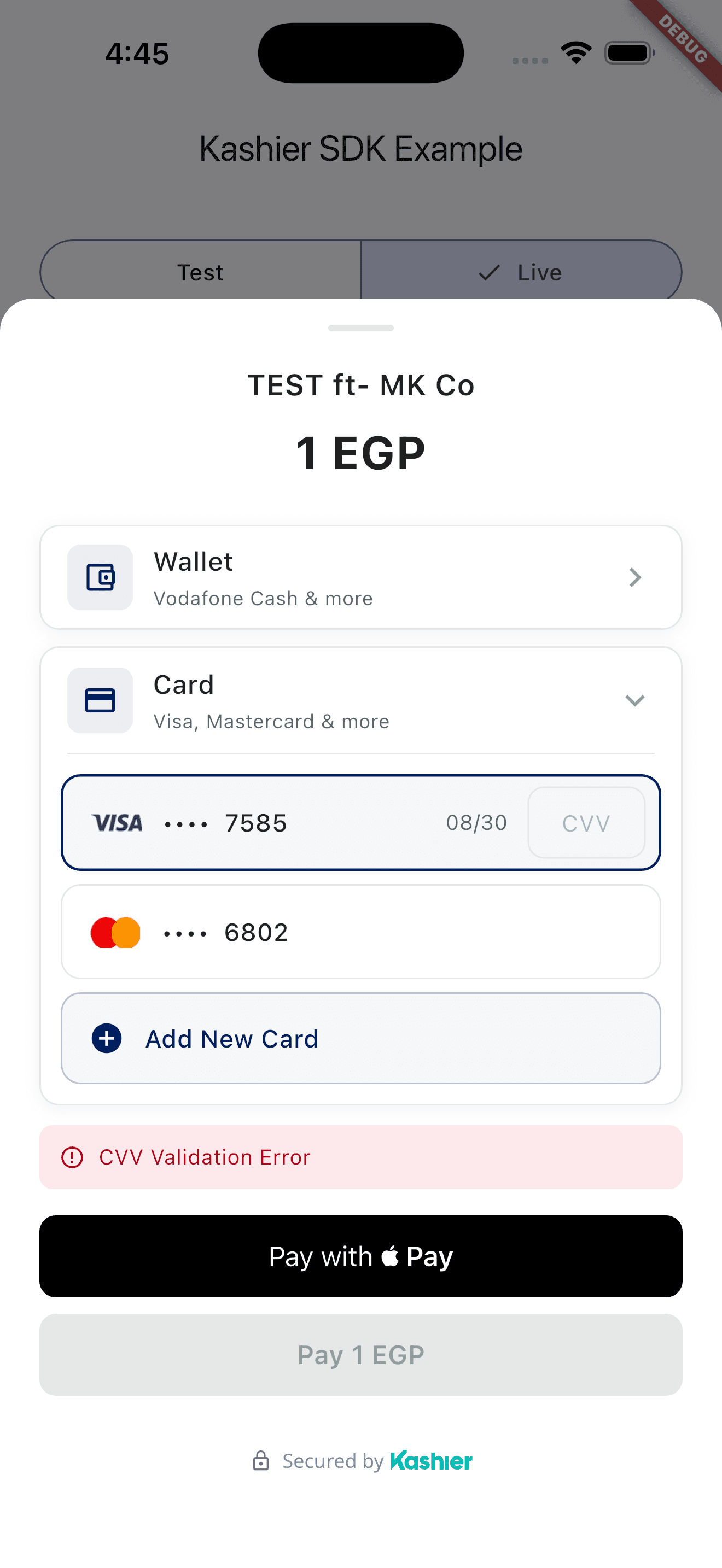
Special-case patterns
- userCancelled: never show an error toast / dialog. The user knows they cancelled —
if (error.code == KashierErrorCode.userCancelled) return; - networkError: the SDK pre-checks connectivity via connectivity_plus. On a drop, surface a retry button.
- paymentTimeout (wallet only): the polling cap is 5 minutes. The session may still settle — treat the server webhook as the source of truth.
- sessionExpired / sessionNotFound: the user can't recover; your app must mint a new session and restart.
Localization of error copy
Every error carries message (English) and messageAr (Arabic):
final isAr = KashierSDK.language == KashierLanguage.ar;
final copy = isAr ? (error.messageAr ?? error.message) : error.message;
Diagnostics
When opening a Kashier support ticket about a failure, include error.code.name, error.message, error.responseCode, error.details, the session ID and approximate timestamp.
Callbacks and results
startPayment resolves to exactly one of three terminal callbacks. Wire all three (onPending optional) and confirm settlement server-side for pending.
| Callback | Type | Fires when |
|---|---|---|
| onSuccess | KashierPaymentResult | Payment confirmed (card / wallet / Apple Pay) |
| onPending | KashierPaymentPending | Card 3DS reconcile exhausted, OR wallet 5-min poll exhausted + "I have paid" tapped. Terminal. |
| onFailure | KashierPaymentError | Any failure, including userCancelled |
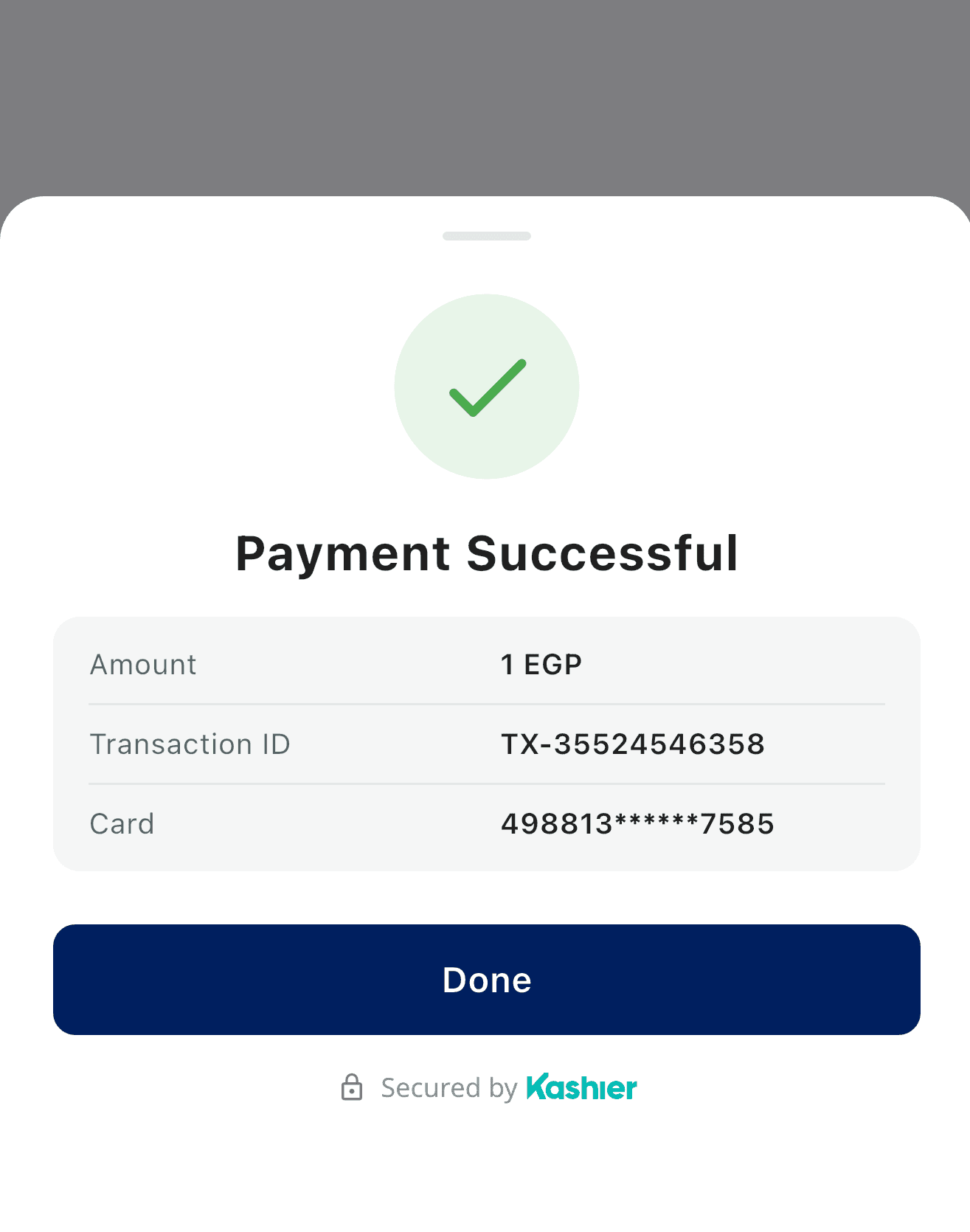
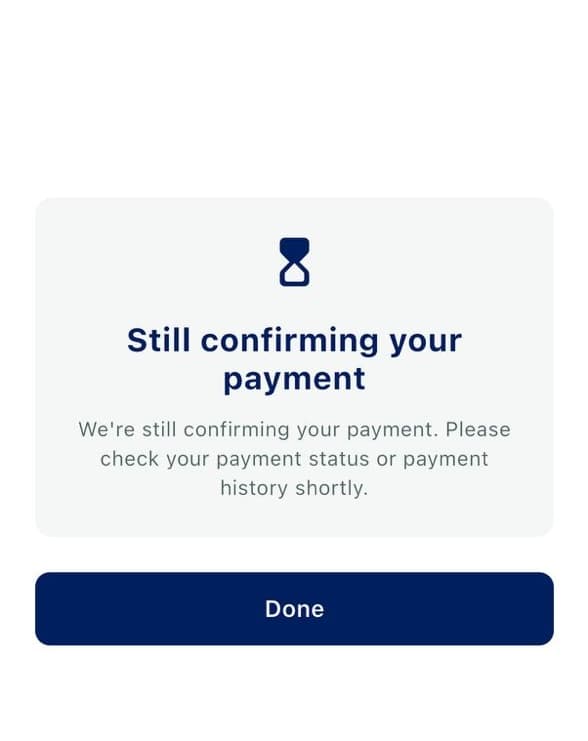
Card pending and wallet pending render on distinct surfaces, but both deliver the same terminal onPending(KashierPaymentPending). Always reconcile final settlement using pending.orderId via your webhook/backend.
Testing guide
Test mode
KashierSDK.initialize(mode: KashierMode.test);Test mode endpoints: API https://test-api.kashier.io, FEP https://test-fep.kashier.io. Make sure your backend mints sessions against the matching test API and returns test-mode session IDs. A live session in test mode will fail with sessionNotFound.
Apple Pay testing
Apple Pay testing requires a physical iOS device (not the Simulator), the full setup complete (merchant ID + entitlement + certificate), and an Apple sandbox tester account with at least one test card in Apple Wallet.
- Complete the runbook and pass
appleMerchantIdtoinitialize(). - Create a sandbox tester at App Store Connect → Sandbox Testers.
- Sign into the sandbox account on the device under Settings → App Store → Sandbox Account.
- Add a test card to Apple Wallet — see Apple's Sandbox Testing for Apple Pay.
- Run your Flutter app on the device, open the SDK sheet, and complete the flow.
Simulator and a missing/mismatched merchant ID both return applePayNotAvailable. There is no way to test Apple Pay end-to-end on the Simulator.
Wallet testing
Use 01010101010 for Vodafone Cash and 01001001001 for any other wallet (see Test data). The wallet flow is asynchronous: after entering the test number, the SDK polls reconcile and fires onSuccess (or a configured failure) within a few seconds in test mode. If you let polling run the full 5 minutes without a terminal result, the SDK shows the "I have paid" button, and tapping it fires the terminal onPending.
Card testing
Use standard Kashier test PANs to exercise success, decline, and 3DS-required paths.
| Scenario | Expected outcome |
|---|---|
| Success | onSuccess |
| Generic decline | onFailure(paymentDeclined) |
| 3DS required → success | 3DS WebView → onSuccess |
| 3DS required → wrong OTP | 3DS WebView → onFailure(authenticationFailed) |
| 3DS cancelled but charge went through | cancel reconcile → onSuccess |
| 3DS cancelled, nothing settled | cancel reconcile exhausts → onFailure(userCancelled) |
| Reconcile exhausts while settling | onPending |
| Insufficient funds | onFailure(paymentDeclined) with issuer code |
Going live
- Switch to live mode:
KashierSDK.initialize(mode: KashierMode.live, appleMerchantId: '…'). - Verify your backend uses live Kashier API credentials and creates sessions against https://api.kashier.io.
- Confirm your Apple Pay Payment Processing Certificate is provisioned with Kashier.
- Run a real, low-value smoke transaction through each method you support.
- Ensure your backend webhook handler treats Kashier as the source of truth — do not rely solely on the mobile SDK callback.
- Test the failure paths once more in live mode (cancellation, declined card).
Frequently asked questions
Do I need my own Apple Pay merchant ID or certificate?
Yes. Apple Pay is per-merchant: register your own Apple Pay Merchant ID, add it to your Xcode entitlement, and pass it to KashierSDK.initialize(appleMerchantId: …). You also need your own Payment Processing Certificate, uploaded with its private key in the Kashier dashboard under Settings > Device Payment Configuration > Apple Pay, so your tokens can be decrypted — see Upload your certificates to Kashier.
Why doesn't startPayment need a BuildContext?
Because KashierPaymentProvider holds a global overlay reference. The SDK pushes its sheet onto that overlay rather than your Navigator, so it works from any layer of your app — including background callbacks, Bloc handlers, services, etc.
Can I switch language at runtime?
Yes — call KashierSDK.initialize(mode: ..., language: KashierLanguage.ar) again with the new language. This re-creates the internal API client and re-registers payment handlers.
What happens if the user cancels Apple Pay?
onFailure fires with KashierErrorCode.userCancelled. Suppress your error UI for that code — treat it the same as a benign back-tap.
My wallet payment never fires onSuccess. Why?
The customer hasn't completed the payment in their wallet app. The SDK polls Kashier for up to 5 minutes; if still pending at the cap it shows "I have paid" (→ terminal onPending), and an outright timeout surfaces onFailure(paymentTimeout). The session may still settle later — treat the server webhook as authoritative.
What happens if the user cancels the 3DS challenge?
The SDK doesn't fail immediately. It runs a short cancel safety-net reconcile (5 attempts over ~60s) in case the payment actually went through, then fires onSuccess/onFailure if a result is found, or onFailure(userCancelled) if nothing settled.
How do I customize the sheet's brand color?
Set brandColor on the session when your backend creates it. Accepts 6-digit RRGGBB or 8-digit AARRGGBB, with or without #. Invalid values fall back to Kashier's primary color.
The Apple Pay button doesn't show on Android. Is that a bug?
No — Apple Pay is iOS-only. The button still renders on Android but tapping it surfaces applePayNotAvailable. The unified payment sheet hides Apple Pay entirely on Android.
Where do I get a session ID?
Your backend creates one by calling Kashier's Payment Sessions API. Backend integration is out of scope for this guide.
Is the SDK PCI-compliant?
Card data never touches your app's process. The SDK collects card input in its own form and tokenizes directly against Kashier FEP. Your app stays out of PCI scope as long as you use the SDK's card form.
Can I show my own custom payment UI instead of the SDK's sheet?
Not supported in v1. The SDK owns the sheet UI to ensure consistent behavior across methods. If you need a deeply custom flow, contact Kashier support.
Does the SDK support recurring or stored-credential payments?
Yes — through the save-card feature. Set session.saveCard = "optional" or "forced" and session.retrieveSavedCard = true on subsequent sessions for the same customer. The SDK handles tokenization; your backend issues the recurring charge against the saved token.
Does the SDK work with MaterialApp.router (GoRouter, AutoRoute)?
Yes. KashierPaymentProvider is independent of routing — wrap whichever app widget you use. The SDK overlay sits above the router's navigation stack.
What happens if the device goes offline mid-payment?
The SDK pre-checks connectivity (via connectivity_plus) before each API call and surfaces KashierErrorCode.networkError if offline. Mid-flight network drops are caught and reported the same way.
Can two startPayment calls run at once?
No — only one sheet can be visible at a time. Call startPayment once and wait for one of the callbacks to fire before calling again.