
iOS SDK
Accept cards, saved cards, mobile wallet, and Apple Pay payments in your native iOS app
A native Swift SDK that drops a complete, Kashier-hosted payment experience into your iOS app. Your app hands the SDK a session ID created by your backend; the SDK renders the payment sheet, collects card, wallet or Apple Pay details, handles 3-D Secure, and reports exactly one outcome.
Your app never touches card numbers, CVVs, or Kashier API credentials.
| Field | Value |
|---|---|
| Module | Kashier |
| Latest version | 1.0.1 |
| Distribution | Swift Package Manager and CocoaPods, by git tag from Kashier-payments/kashier_ios_sdk |
| Audience | Merchant developers integrating Kashier payments into native iOS apps |
| Minimum iOS | 17.0 |
SDK overview
What it does
- Presents the Kashier payment sheet over your app's screen.
- Supports card payments (new and saved cards), mobile wallet payments and Apple Pay.
- Handles 3-D Secure in a full-screen web view inside the SDK.
- Checks the payment's status with Kashier automatically, and reports a pending outcome rather than guessing when the status is still open.
- Ships English and Arabic UI, with right-to-left layout for Arabic.
- Reports exactly one outcome per payment: success, pending or failure.
What it does not do
- No session creation. Your backend creates sessions.
- No merchant credentials in the app. The SDK takes only a session ID.
- No SwiftUI API. The SDK is called from UIKit code. SwiftUI apps call it through a view controller (see Calling from SwiftUI).
- No state kept between launches. The SDK writes nothing to disk and restores nothing after your app is terminated (see Presentation and backgrounding).
Payment method availability
The sheet shows Wallet, Card and Apple Pay, filtered by the session's allowed payment methods. An empty allowed-methods list means every supported method is offered. Your app cannot choose the method: it is decided by the session your backend creates. The sheet also hides a method the device cannot offer — Apple Pay in particular needs a merchant ID and a device set up for it (see Apple Pay).
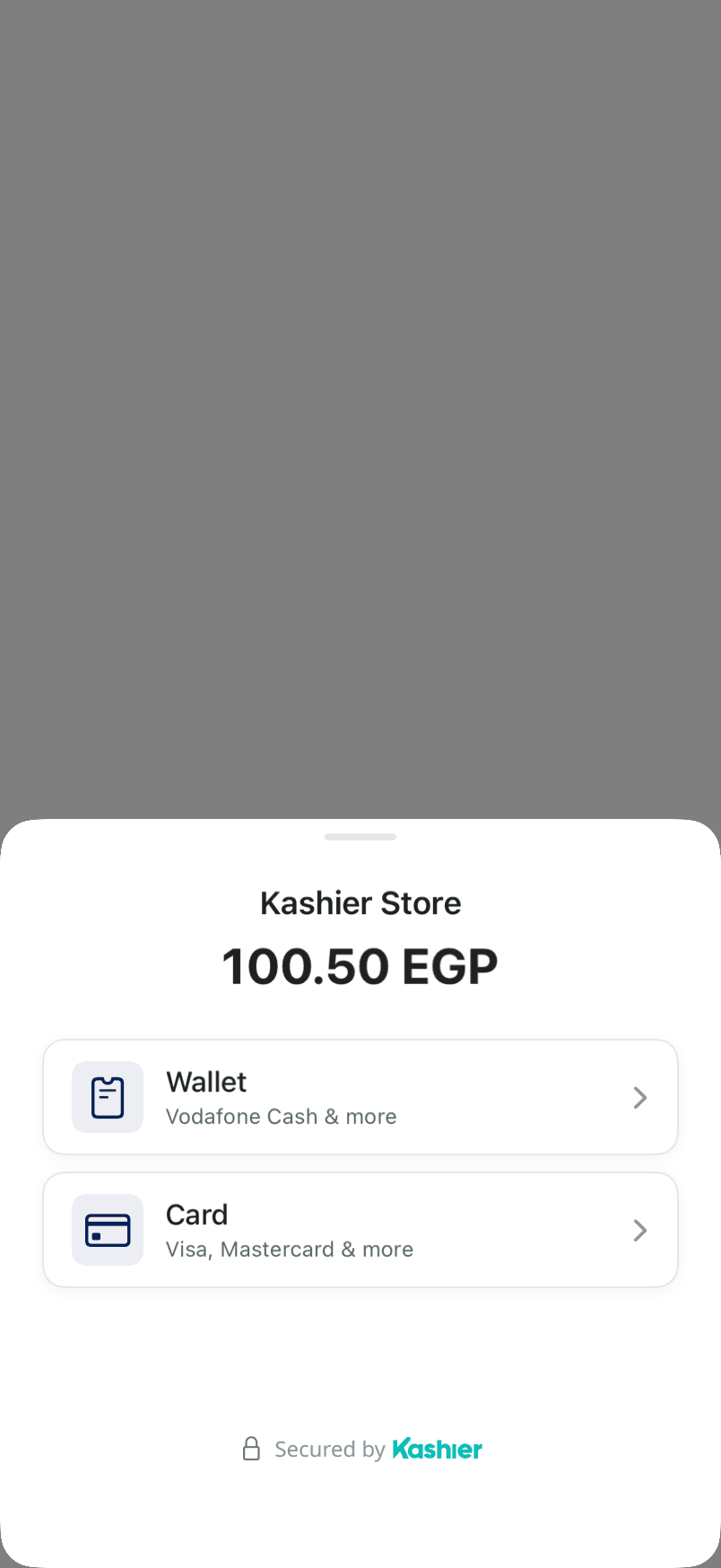
The payment sheet your customers see. When Apple Pay is available, the system Apple Pay button appears below the Card tile; this capture does not include it.
Architecture at a glance
Your view controller
  │  KashierSDK.initialize(KashierConfig(mode:language:appleMerchantID:))   // before the first payment
  │  KashierSDK.startPayment(sessionId:from:…)                              // callbacks or async
  ▼
Kashier payment sheet (presented over your view controller)
  ├── load the session  →  show the sheet
  ├── card       →  create the order  →  3-D Secure web view  →  status check
  ├── wallet     →  payment request   →  poll the status (max 5 min)
  └── Apple Pay  →  system Apple Pay sheet  →  create the order
  ▼
Outcome  →  success | pending | failure
Requirements
| Requirement | Value |
|---|---|
| Minimum iOS | 17.0 |
| Xcode | 16 or later (the SDK needs the Swift 6.0 toolchain) |
| Swift | 6.0 toolchain; the SDK is built in Swift 6 language mode |
| Presenter | A UIViewController that is on screen |
| Network | Internet access |
| Backend | A server that creates Kashier payment sessions |
The SDK has no third-party dependencies. It uses UIKit, SwiftUI, WebKit, PassKit and Apple's networking frameworks.
What is a session ID?
A session ID identifies a payment your backend created with Kashier before the customer reaches checkout. It carries the amount, currency, order reference, allowed payment methods, customer details and the server-computed payment hash.
The SDK takes the session ID as its only payment input. It never creates sessions and never needs your Kashier API credentials. Create sessions server-to-server, then pass the session ID to your app over your own authenticated channel.
Note
Backend integration is out of scope for this guide. See Payment sessions for backend details.
Installation and setup
The SDK is distributed from the Kashier public repository, Kashier-payments/kashier_ios_sdk, by git tag. It is not published to the CocoaPods trunk. Each release is a git tag. Swift Package Manager takes updates up to the next major version; CocoaPods pins the tag.
Swift Package Manager
In Xcode, choose File › Add Package Dependencies… and enter:
https://github.com/Kashier-payments/kashier_ios_sdkChoose Up to Next Major Version from 1.0.1, then add the Kashier library to your app target.
In a Package.swift:
// Package.swift
dependencies: [
    .package(url: "https://github.com/Kashier-payments/kashier_ios_sdk", from: "1.0.1")
],
targets: [
    .target(
        name: "YourApp",
        dependencies: [.product(name: "Kashier", package: "kashier_ios_sdk")]
    )
]
CocoaPods
platform :ios, '17.0'

target 'YourApp' do
  pod 'Kashier', :git => 'https://github.com/Kashier-payments/kashier_ios_sdk.git', :tag => '1.0.1'
end
Because the pod comes from a git tag, you upgrade by changing the tag.
The SDK's localized strings, images and privacy manifest ship inside the package; there is nothing to add by hand.
iOS project setup
Capabilities and Info.plist — nothing for cards and wallets
Card and mobile-wallet payments need no capability, entitlement or Info.plist key. The SDK's own API endpoints use HTTPS (see SDK configuration).
Apple Pay does need a capability: see Apple Pay.
Right-to-left
The SDK sets its own layout direction from KashierConfig.language: Arabic lays out right to left and English left to right, whatever the device language. It does not change your app's layout.
Appearance
The payment sheet is light-only: it keeps its light appearance when the device is in Dark Mode.
Privacy manifest
The SDK includes a privacy manifest, PrivacyInfo.xcprivacy. It declares:
- Tracking: none. No tracking domains.
- Required-reason APIs: none used.
- Collected data types, each linked to the user, not used for tracking, and collected for app functionality: payment info, name, email address, user ID, phone number and purchase history.
Review these entries when you complete your own app's privacy manifest and App Store privacy answers.
Quick start
The smallest complete integration: configure the SDK, start a payment from a view controller, and handle every outcome.
import Kashier
import UIKit

final class CheckoutViewController: UIViewController {

    override func viewDidLoad() {
        super.viewDidLoad()
        // 1. Configure once, before the first payment.
        KashierSDK.initialize(KashierConfig(mode: .test, language: .en))
    }

    // 2. Start a payment with a session ID your backend created.
    func pay(sessionId: String) {
        KashierSDK.startPayment(
            sessionId: sessionId,
            from: self,
            onSuccess: { result in
                // Paid. Confirm with your backend before fulfilling the order.
                self.showReceipt(orderId: result.orderId, transactionId: result.transactionId)
            },
            onFailure: { error in
                if error.code == .userCancelled {
                    self.returnToCheckout()
                } else {
                    // error.message is English; error.messageAr is Arabic.
                    self.showError(error.message)
                }
            },
            onPending: { pending in
                // Terminal: no success or failure follows. pending.orderId is the
                // authoritative reference. Confirm it on your backend.
                self.showPending(orderId: pending.orderId, message: pending.message)
            }
        )
    }

    private func showReceipt(orderId: String?, transactionId: String?) {}
    private func showError(_ message: String) {}
    private func showPending(orderId: String, message: String) {}
    private func returnToCheckout() {}
}
Note
startPayment never throws. A missing configuration or a blank session ID arrives at onFailure as a validationFailed error (see Launching a payment).
SDK configuration
KashierSDK.initialize(
    KashierConfig(mode: .live, language: .ar, appleMerchantID: "merchant.com.yourcompany")
)
KashierConfig
| Property | Type | Meaning |
|---|---|---|
mode | KashierMode | .test or .live — selects the Kashier environment |
language | KashierLanguage | .en (default) or .ar — language and layout direction of the payment sheet |
appleMerchantID | String? | Your Apple Pay Merchant ID. When nil or empty, Apple Pay is not offered (see Apple Pay) |
KashierMode
| Value | API base URL | Payment-processing base URL |
|---|---|---|
.test | https://test-api.kashier.io | https://test-fep.kashier.io |
.live | https://api.kashier.io | https://fep.kashier.io |
Create the session in the same environment as the mode you configure.
Initialization contract
- Call
initializebefore the first payment.KashierSDKruns on the main actor. - You can call it again at any time. The new configuration applies to the next payment only; a payment already running keeps the configuration it started with, including its language.
- Configuration is held in memory only. It does not survive your app's termination, so call
initializeagain on every launch. KashierSDK.isInitialized,KashierSDK.modeandKashierSDK.languageread back the current values.languageis the language the next payment will use.- Starting a payment before initializing reports a
validationFailederror with the message "Kashier SDK is not initialized." - The language is always the one you configure; the SDK never reads the device language.
Launching a payment
The SDK has two entry points. Both report exactly one outcome per payment and neither throws.
Callbacks
KashierSDK.startPayment(
    sessionId: sessionId,
    from: viewController,
    onSuccess: { result in /* KashierPaymentResult */ },
    onFailure: { error in /* KashierPaymentError */ },
    onPending: { pending in /* KashierPaymentPending */ }
)
At most one closure runs. The closures run on the main actor.
onSuccessandonFailurerun after the SDK has removed its UI and released its hold on the payment, so you can start another payment from inside them.onPendingruns before the SDK finishes. AstartPaymentcall made from insideonPendingis rejected withvalidationFailed.onPendingis optional. Without it, a pending payment ends with no callback at all. Always pass it.
async/await
let outcome = await KashierSDK.startPayment(sessionId: sessionId, from: viewController)It returns a KashierOutcome: .success, .pending or .failure. Unlike the callback version, it always returns an outcome, including for a pending payment.
Cancelling the calling Task does not cancel a payment that has started. The payment runs to its real outcome and the call still returns it (see Presentation and backgrounding).
What the SDK checks before presenting
| Situation | onFailure (code validationFailed) message |
|---|---|
| SDK not initialized | "Kashier SDK is not initialized." |
| Blank session ID (whitespace counts as blank) | "A session ID is required." |
| Another payment is running | "A payment is already in progress." |
| The presenting controller is not in a visible window | "The presenting view controller is not in a window hierarchy." |
| The presenting controller is already presenting something | "The presenting view controller is already presenting." |
| The presenting controller went away while the session loaded | "The presenting view controller is no longer able to present." |
| UIKit did not complete the presentation | "The payment sheet could not be presented." |
The SDK loads the session before it presents anything. If the session cannot be loaded, onFailure runs and no Kashier UI appears. A session whose payment methods are all unavailable still shows the sheet, in its empty state.
Handling payment results
Every payment ends in one of three outcomes.
| Outcome | Type | What to do |
|---|---|---|
| Success | KashierPaymentResult | Show a receipt. Confirm with your backend before you fulfill the order. |
| Pending | KashierPaymentPending | The payment is not final. Do not fulfill; wait for your backend's confirmation. |
| Failure | KashierPaymentError | .userCancelled means the customer closed the sheet. Show message for the others. |
When backend reconciliation is required
- Always before fulfilling an order: treat the SDK's success as a signal and confirm the final status on your server.
- On pending, use
pending.orderIdas the reference to look up. - On a failure with code
.unknownErrorand the message "Payment status could not be verified. Please check your payment history.", the payment reached Kashier but its result did not come back. This is not a failure. Check the order on your server before you let the customer pay again. The SDK does not retry it and does not let the customer retry it.
KashierPaymentResult fields
| Field | Type | Meaning |
|---|---|---|
sessionId | String | The session that was paid |
status | String | Payment status reported by Kashier |
orderId | String? | Kashier order ID |
orderReference | String? | Your order reference from the session |
transactionId | String? | Kashier transaction ID |
authorizationNumber | String? | Authorization number, when present |
amount | Double? | Amount, for display only |
currency | String? | Currency code |
card | KashierCardInfo? | brand, maskedNumber and wallet (for example APPLE_PAY) |
message, messageAr | String? | Message in English and Arabic |
transactionData | KashierJSONValue? | Raw response body. Sensitive: never log, store or transmit it |
Take amounts for bookkeeping from your own backend, not from amount.
KashierPaymentPending fields
| Field | Type | Meaning |
|---|---|---|
orderId | String | The authoritative reference for later reconciliation |
transactionId | String | May be an empty string |
message | String | Message in the language you configured |
messageEn, messageAr | String? | The message in each language |
Card and saved cards
New-card flow
- The customer taps Card (or Add New Card when saved cards are shown).
- The customer fills in the card form and taps Pay.
- The SDK sends the card to Kashier. It never passes through your app.
- Depending on the card, the payment finishes at once, or the customer completes 3-D Secure (see 3-D Secure).
- The sheet shows the result and your callback runs.
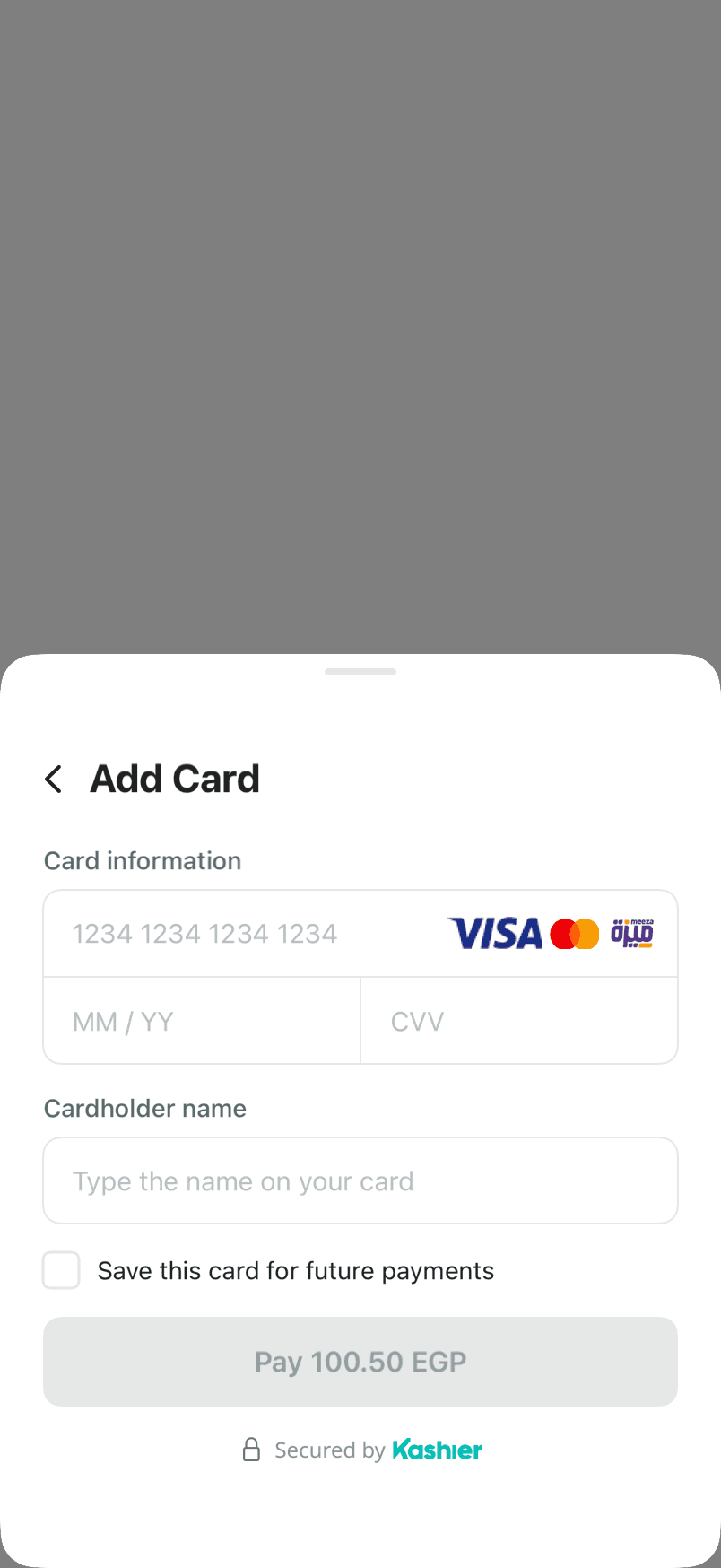
Card form rules
| Field | Rule |
|---|---|
| Card number | 16 digits that pass the Luhn check |
| Expiry | MM/YY, month 1–12, not in the past |
| CVV | 3 digits |
| Cardholder name | 2–50 characters, ASCII letters and spaces only (an Arabic name is rejected) |
Pay stays disabled until every field is valid. Brand artwork is shown for Visa (numbers starting with 4), Mastercard (51–55 and 2221–2720) and Meeza (507803–507960).
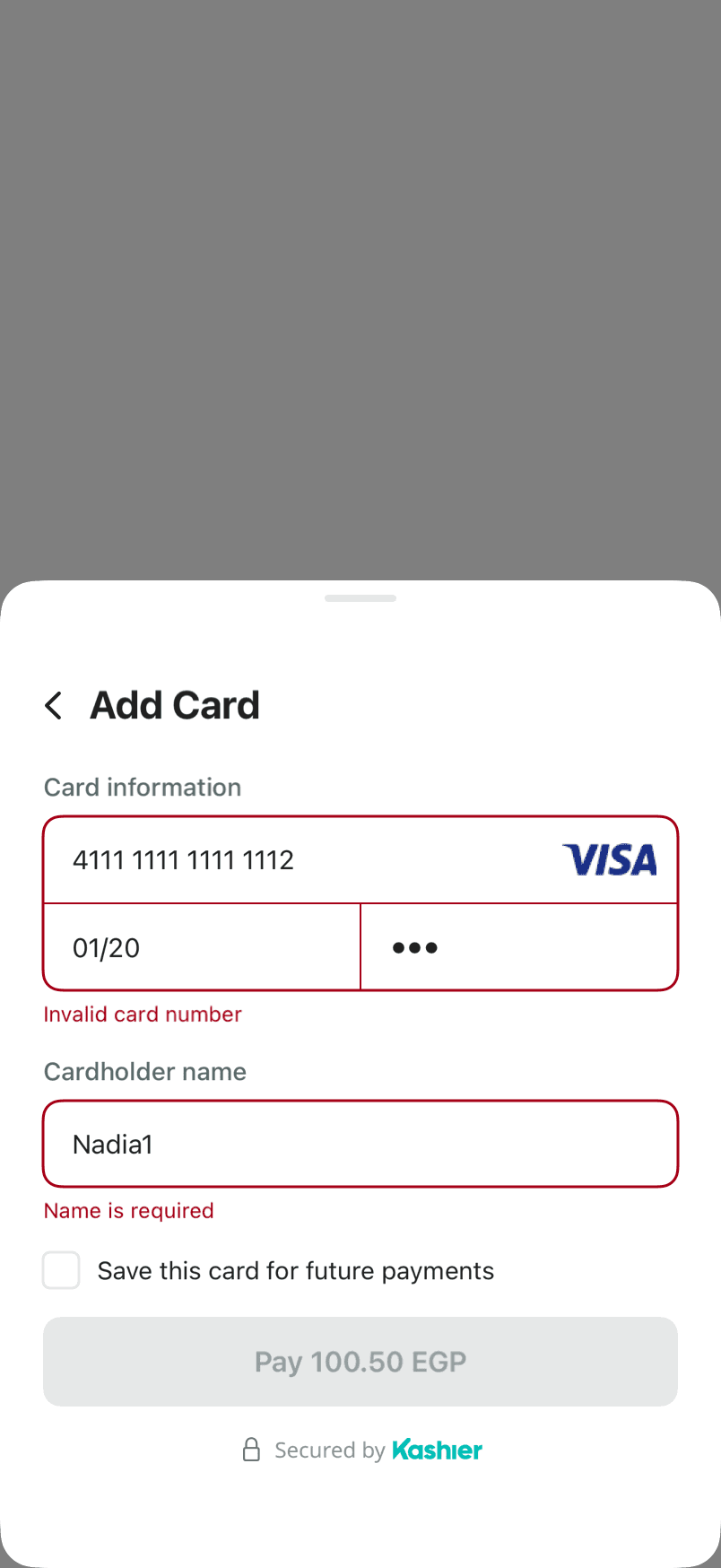
Saving a card after payment
The Save this card for future payments checkbox appears only when all of these hold:
- The session's save-card setting is not
hidden. - The SDK is in live mode (it is never shown in test mode).
- The session carries customer details.
When the session's save-card setting is forced, the box is checked and cannot be changed. Cards are saved only for a session that carries a customer.
What your app sees
| Situation | Result |
|---|---|
| Payment succeeds | onSuccess |
| The customer closes the sheet before paying | onFailure with .userCancelled |
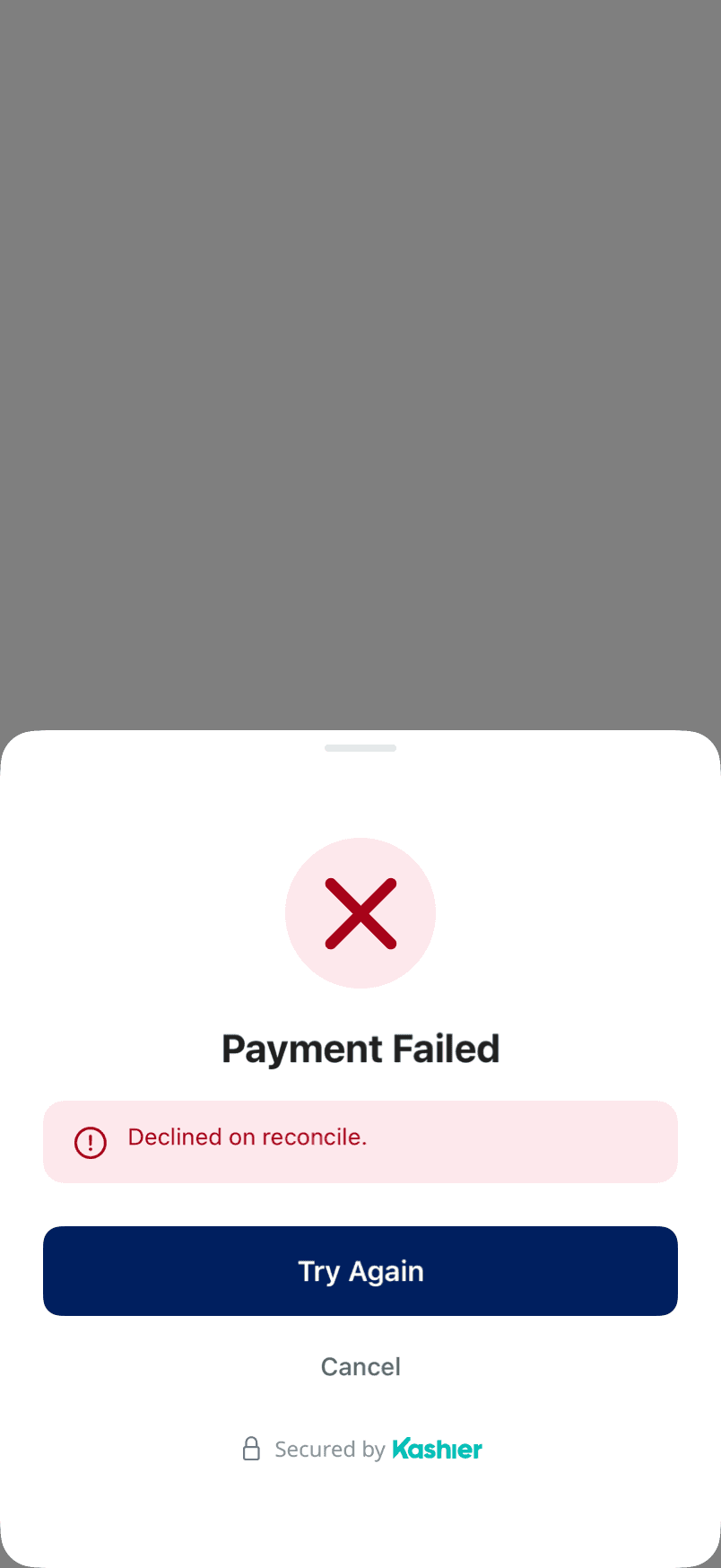
| A decline the customer can retry | Shown inside the sheet with Try Again and Cancel; your callback does not run yet. Cancel reports that failure's code. After Try Again, closing the sheet reports .userCancelled |
| A failure the SDK cannot let the customer retry safely | onFailure with that failure's code |
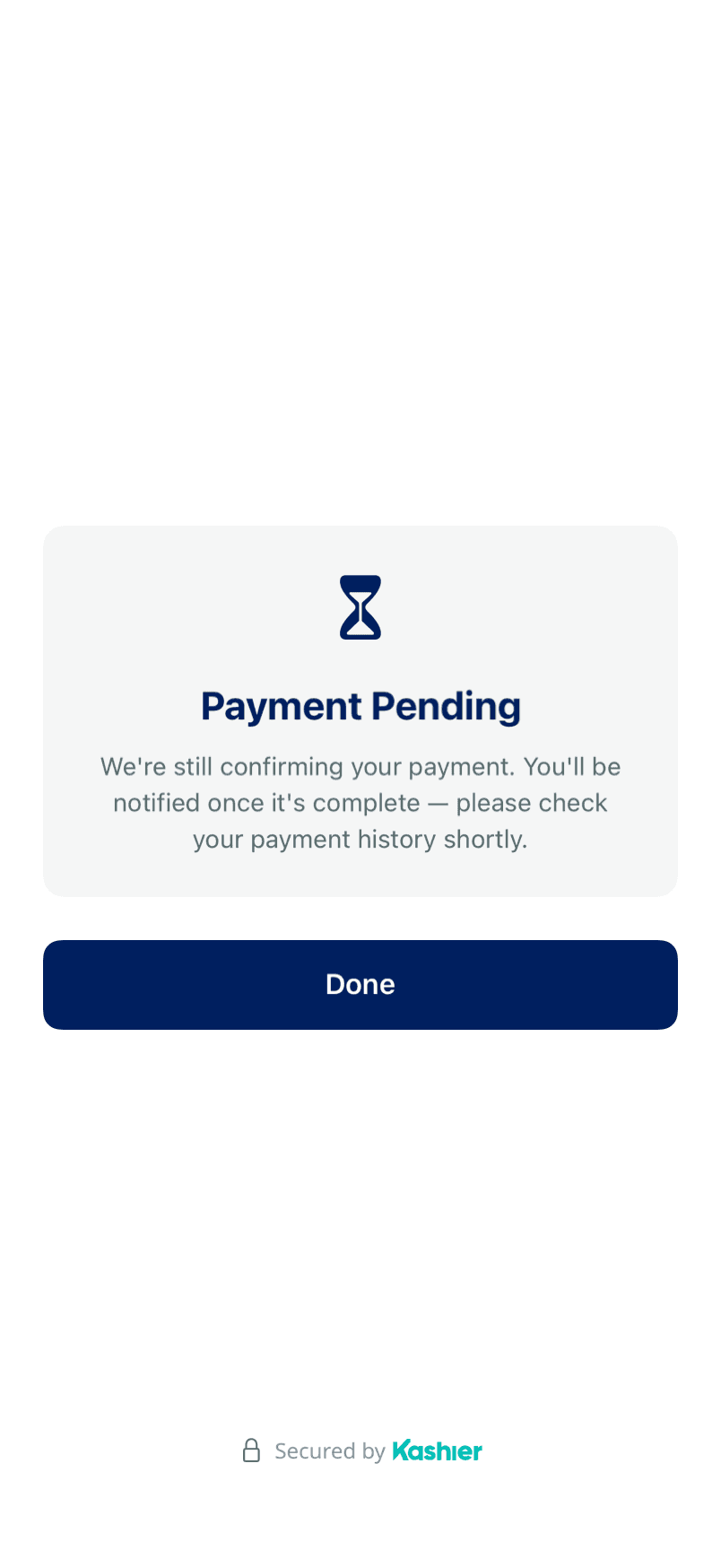
| Payment is still open after the status checks | onPending, then a Payment Pending screen until the customer taps Done |
| The result never reached the SDK | onFailure with .unknownError ("Payment status could not be verified…") |
A failed attempt that the sheet lets the customer retry offers Try Again and Cancel. Cancel reports that failure's code to your app, not .userCancelled.
Status checks
After the SDK creates an order it confirms the result with Kashier by checking the order's status on a short schedule that lasts about a minute. The check ends in one of:
- a success, a failure, or a pending outcome when Kashier answered but the status was still open;
- an unknown result when no status check got an answer. This is reported as the
.unknownErrorfailure described in Handling payment results, never as pending.
While a status check runs, the customer cannot cancel or switch method.
Authorize and capture
When the session was created with manualCapture: true, a card payment authorizes the funds rather than capturing them, and reports success with result.status == "AUTHORIZED". Capture and void run on your backend. Only card payments authorize on a manual-capture session: Apple Pay is always sent as an immediate payment, and wallets as a wallet payment request.
Card data security
Card data goes from the SDK's sheet to Kashier. Your app's code never receives the card number, expiry or CVV, and no part of the public API accepts them.
Saved cards
When saved cards are fetched
The SDK fetches saved cards only when the session has saved-card retrieval switched on and a customer reference. It starts after the sheet is on screen. If the fetch fails, the card section falls back to Add New Card only; payment is never blocked.
Presentation
Saved cards appear inside the Card tile as a list of masked cards (brand and last four digits), followed by Add New Card. The list shows three cards; View more reveals the rest.
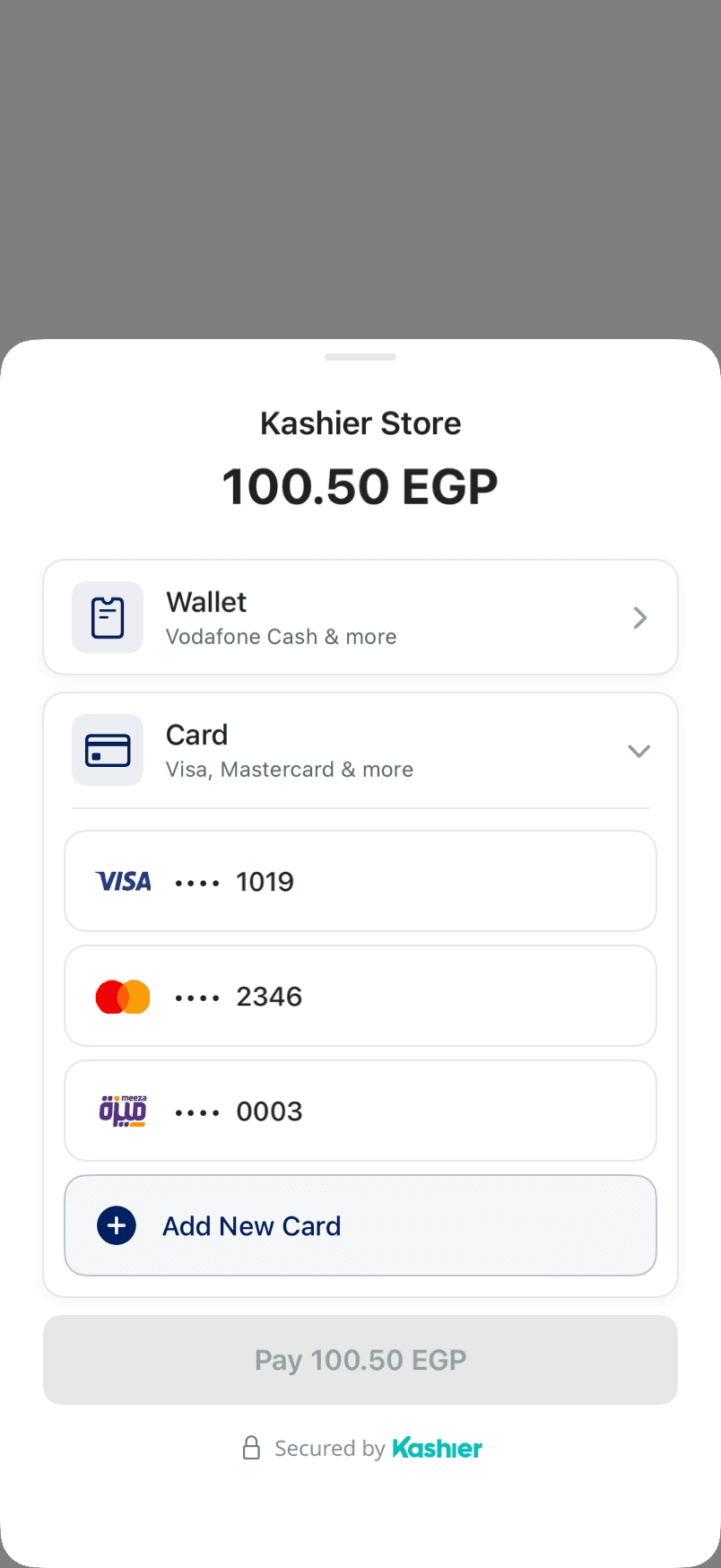
Paying with a saved card
- The customer selects a saved card.
- The customer enters the card's 3-digit CVV.
- The customer taps Pay.
Deleting a saved card
Swipe a saved card toward the start edge to delete it (left in English, right in Arabic). The customer confirms ("Delete card ending in …?"). If the deletion fails, the card stays in the list and the sheet shows "Failed to delete card. Please try again." for 4 seconds. A deletion that is still running prevents the customer from dismissing the sheet by tapping outside it.
Wallet payments
Flow
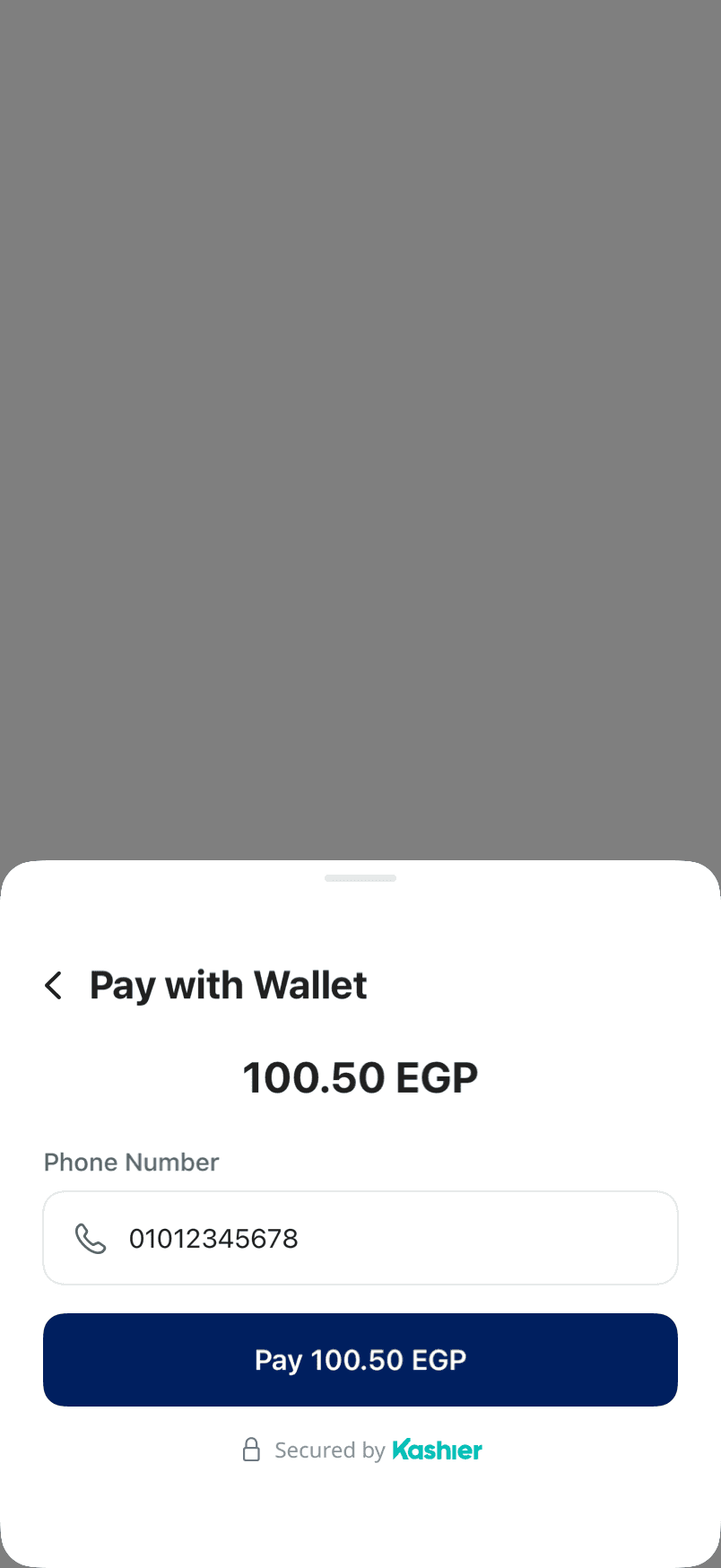
- The customer taps Wallet and enters an Egyptian mobile number: 11 digits, starting
010,011,012or015. An invalid number shows "Enter a valid Egyptian phone number". - The SDK sends a payment request to the wallet.
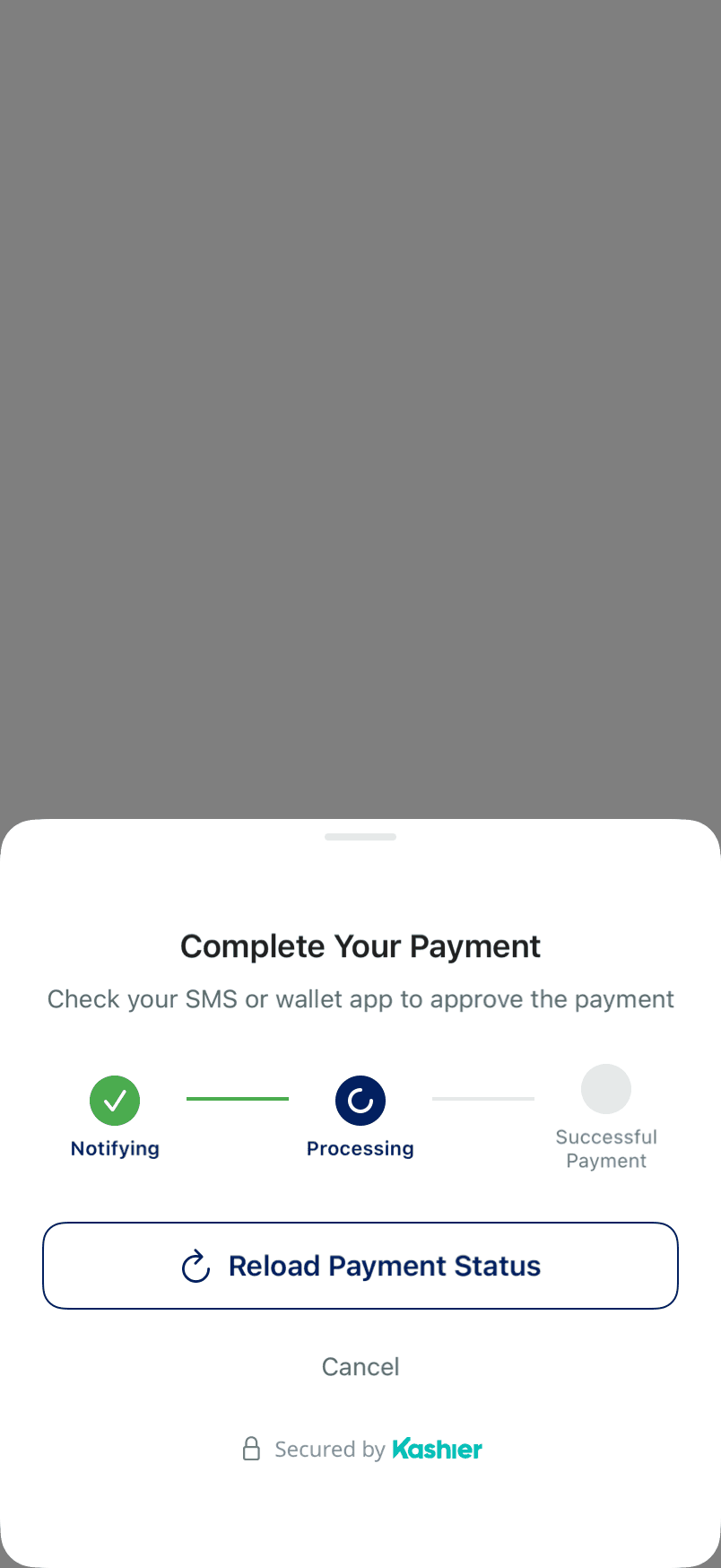
- The sheet shows Complete Your Payment: "Check your SMS or wallet app to approve the payment".
- The SDK polls Kashier for the payment status until it is final.
Polling schedule
The SDK checks the status every 10 seconds for the first 2 minutes (12 checks), then after waits of 30, 45, 60, 90, 120 and 180 seconds. Polling stops when the next wait would pass 5 minutes in total; in practice the last check happens roughly 4 minutes 15 seconds after the request, plus the time the checks themselves take.
Controls on the waiting sheet
| Control | While polling | After polling ran out |
|---|---|---|
| Reload Payment Status | Runs one status check now | Hidden |
| I have paid | Hidden | Reports a pending outcome to onPending and closes the sheet |
| Cancel | Returns to the phone-number form; your app gets no callback | Ends the payment with onFailure (.userCancelled) |
Cancel only leaves the flow in the SDK. It does not cancel or reverse the request that was sent to the wallet. Tapping outside the sheet during waiting ends the payment with .userCancelled in the same way.
Exhaustion
When polling runs out:
- If Kashier gave at least one answer with a non-final status, the sheet shows "Payment Pending" with I have paid and Cancel. I have paid reports a pending outcome built from the latest answer.
- If no answer was received, the payment is reported as the
.unknownErrorfailure "Payment status could not be verified…".
What your app sees
| Situation | Result |
|---|---|
| Wallet payment confirmed | onSuccess |
| Kashier reports the payment failed | A failure sheet with Try Again (back to the phone-number form) and Cancel. Cancel reports that failure's code |
| The customer taps I have paid | onPending |
| Cancel at exhaustion, or tap outside the sheet | onFailure with .userCancelled |
| A wallet request that Kashier rejects | Shown inline on the phone-number form so the customer can retry. A failure that cannot safely be retried ends the payment with onFailure |
Apple Pay
Apple Pay pays through the system Apple Pay sheet. It supports Visa, Mastercard and Meeza by default. For the rules Apple Pay shares with the card rail, such as refunds and voids, see Apple Pay.
Set up
- Create your Apple Pay Merchant ID and Payment Processing Certificate in your own Apple Developer account, then upload the certificate and its private key in the Kashier dashboard under Settings > Device Payment Configuration > Apple Pay with Use my own certificates turned on. See Accept Apple Pay in your iOS app. Without this, Kashier cannot decrypt Apple Pay payments from your app.
- In Xcode, add the Apple Pay capability to your app target and select your Apple Pay Merchant ID. The ID in your app's capability (the
com.apple.developer.in-app-paymentsentitlement) and the ID you pass to the SDK must be the same. - Pass the same ID to the SDK:
import Kashier

@MainActor
func configureKashier() {
    KashierSDK.initialize(
        KashierConfig(mode: .live, language: .en, appleMerchantID: "merchant.com.yourcompany")
    )
}
Without appleMerchantID, the sheet does not offer Apple Pay.
When Apple Pay is offered
The sheet shows the Apple Pay button when all of these hold:
appleMerchantIDis set and not empty.- The session allows Apple Pay: its allowed methods are empty, or include
applePayorcard. - The device can make payments with Apple Pay, and with Visa, Mastercard or Meeza.
isApplePayAvailable()
import Kashier

func canOfferApplePay() async -> Bool {
    await KashierSDK.isApplePayAvailable()
}
It returns true when the current configuration and the device can offer Apple Pay: a merchant ID is configured, the device can make Apple Pay payments, and it supports Visa, Mastercard or Meeza. It does not read any session, so it cannot tell you whether a particular session allows Apple Pay. Call it after initialize: before that it returns false.
Behavior
- The Apple Pay payment request uses country
EG, the session's currency, the session's supported networks (Visa, Mastercard and Meeza by default) and the 3-D Secure capability. - Apple Pay is always sent as an immediate payment, even when the session uses manual capture, and never goes through the 3-D Secure web view.
- If the customer dismisses the Apple Pay sheet, the payment sheet returns to its landing screen and your app gets no callback.
- If Apple Pay's result is not known after the status checks, the SDK reports the
.unknownErrorfailure "Payment status could not be verified…". Apple Pay never ends in a pending outcome.
3-D Secure
What the customer sees
When the card needs 3-D Secure, the SDK opens the issuer's page in a full-screen web view with a close button (✕) and the title "Verifying your payment". The customer completes the challenge there.
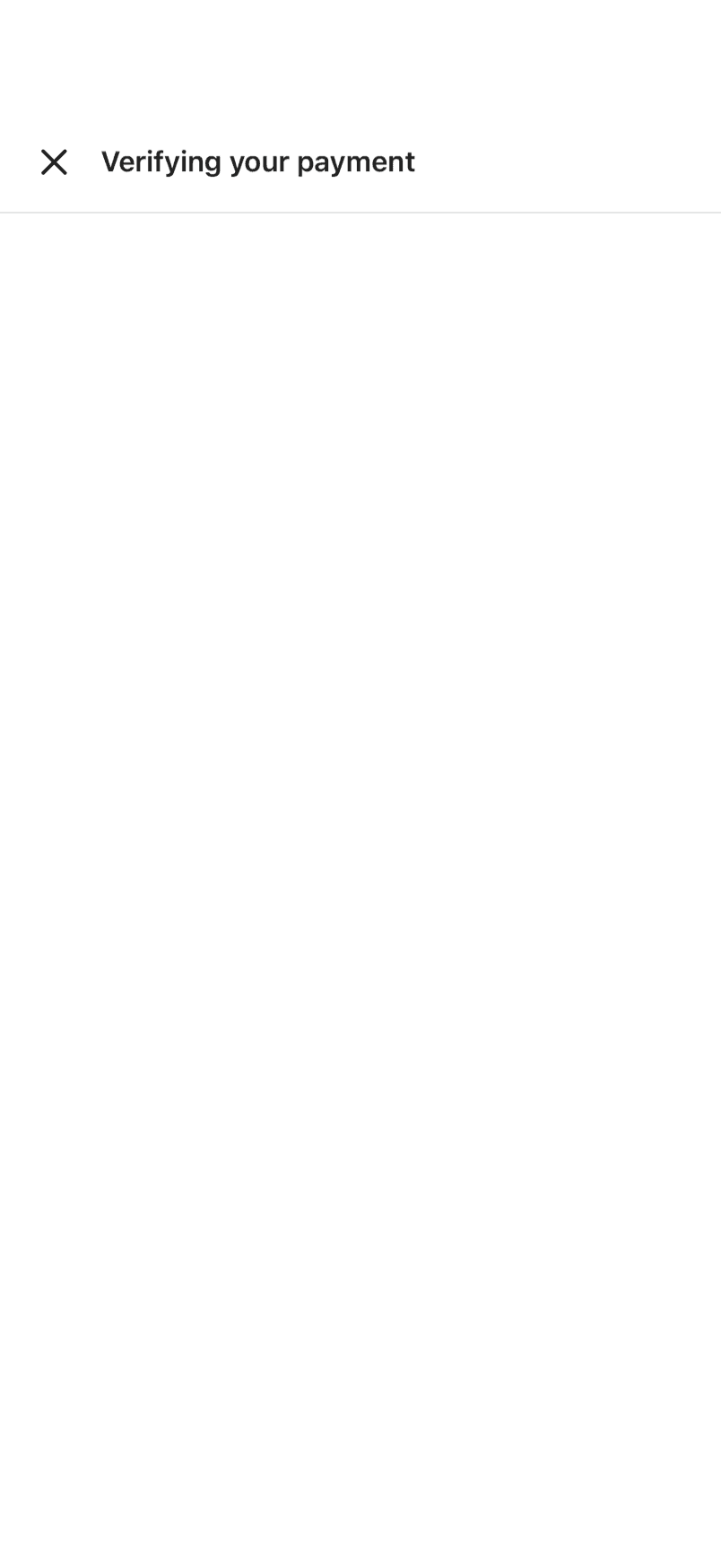
The page content is the issuer's. This capture shows the SDK's frame around it.
How completion is detected
The SDK watches the page's navigation, but nothing the page shows or sends decides the result. Whatever it sees, the SDK confirms the outcome with Kashier by checking the order's status (see Status checks). The customer cannot close the page while that check runs, and tapping outside the page does nothing.
Cancel and retry
- ✕ ends the payment at once with
onFailure(.userCancelled). The SDK does not run a status check and does not cancel the order with Kashier, so verify the order on your backend. - If the page fails to load, the SDK shows an error view with Try Again and Cancel. Try Again reloads the same page; it does not create a new payment. If the payment's result is already unknown, the error view offers only Done, which reports the
.unknownErrorfailure.
Web view security
- The web view uses a non-persistent website data store, created for that payment. Nothing from the issuer's page (cookies, storage) is kept after it, and your app's own web data is not touched.
- JavaScript is enabled, as 3-D Secure pages require.
Presentation and backgrounding
How the sheet is presented
The SDK presents its own full-screen controller (overFullScreen) from the view controller you pass. The sheet slides up over your screen; the dimmed area above it is a backdrop. There is no swipe-to-dismiss.
Tapping the backdrop ends the payment with .userCancelled on the landing sheet, the card form and the wallet screens. It does nothing on the 3-D Secure screen, the result screens, while a payment request is being sent, while a status check runs, while a deletion of a saved card is running, and once an order exists that the SDK must still check.
The presenting view controller
The view controller you pass to startPayment must be:
- in a window that is visible, and
- not already presenting something.
The SDK checks this when you call, and again after it has loaded the session. It holds the controller weakly, so keep it alive and on screen until the payment ends. If it is gone by the time the sheet is due, the payment ends with validationFailed and nothing is shown.
The async overload takes the controller as a consuming parameter and does not extend its lifetime either.
Presenting another controller over the Kashier sheet does not end the payment.
If the payment is torn down from outside
If your app removes the sheet (for example by dismissing the presenter or hiding its window), the payment ends with the outcome that is true at that moment:
| State when the sheet was removed | Outcome |
|---|---|
| An outcome had already been decided | That outcome |
| The customer was looking at a retryable failure | That failure |
| A payment request was in flight, or an order exists | .unknownError ("Payment status could not be verified…") |
| Nothing financial had happened | .userCancelled |
Backgrounding and relaunch
- The SDK does not observe app lifecycle events and starts no background tasks. Its status checks run only while your app is running.
- The SDK stores nothing: not configuration, not a pending payment. If iOS terminates your app during a payment, the SDK cannot deliver an outcome after relaunch. Confirm the order's status from your backend.
- Wallet and card status checks use the order ID the SDK holds in memory. A wallet request the customer approves while your app is not running is visible through your backend, not through the SDK.
One payment at a time
Only one payment can run. A second startPayment while one is running ends at once with validationFailed ("A payment is already in progress."). Because onSuccess and onFailure run after the SDK has let go of the payment, calling startPayment from inside them is allowed.
Reconfiguring during a payment
initialize never changes a payment that is running; it applies to the next one. It is not a way to cancel a payment: the customer cancels from the sheet.
UIKit: callback and async
Both entry points need the same three things: initialize once, a presenting UIViewController, and a session ID from your backend.
Callbacks
Quick start shows the complete callback version.
async/await in UIKit
import Kashier
import UIKit

final class AsyncCheckoutViewController: UIViewController {

    func pay(sessionId: String) {
        Task { @MainActor in
            let outcome = await KashierSDK.startPayment(sessionId: sessionId, from: self)
            handle(outcome)
        }
    }

    private func handle(_ outcome: KashierOutcome) {
        switch outcome {
        case .success(let result):
            // Confirm with your backend before fulfilling the order.
            print("Paid:", result.orderId ?? "", result.transactionId ?? "")
        case .pending(let pending):
            // Terminal: check pending.orderId on your backend.
            print("Pending:", pending.orderId)
        case .failure(let error):
            switch error.code {
            case .userCancelled:
                print("Cancelled")
            case .unknownError:
                // Might be "Payment status could not be verified": check the order
                // on your backend before letting the customer pay again.
                print("Verify with backend:", error.message)
            default:
                print("Failed:", error.code.rawValue, error.message)
            }
        }
    }
}
Showing the Arabic message
KashierPaymentError carries both languages:
import Kashier

func displayMessage(for error: KashierPaymentError, arabic: Bool) -> String {
    if arabic, let messageAr = error.messageAr {
        return messageAr
    }
    return error.message
}
Calling from SwiftUI
The SDK has no SwiftUI API. It needs a UIViewController to present from. In SwiftUI, find the top-most view controller of your app's active window scene and pass that. Use the top-most controller: the SDK refuses a presenter that is already presenting something.
import Kashier
import SwiftUI
import UIKit

@MainActor
func topViewController() -> UIViewController? {
    let scene = UIApplication.shared.connectedScenes
        .compactMap { $0 as? UIWindowScene }
        .first { $0.activationState == .foregroundActive }
    var top = scene?.keyWindow?.rootViewController
    while let presented = top?.presentedViewController {
        top = presented
    }
    return top
}

struct CheckoutView: View {
    let sessionId: String
    @State private var message = ""

    var body: some View {
        VStack(spacing: 16) {
            Button("Pay") {
                guard let presenter = topViewController() else { return }
                Task { @MainActor in
                    let outcome = await KashierSDK.startPayment(sessionId: sessionId, from: presenter)
                    switch outcome {
                    case .success(let result):
                        message = "Paid: \(result.orderId ?? "")"
                    case .pending(let pending):
                        message = "Pending: \(pending.orderId)"
                    case .failure(let error):
                        message = error.message
                    }
                }
            }
            Text(message)
        }
    }
}
Configure the SDK once, early in your app's life:
import Kashier
import SwiftUI

@main
struct StoreApp: App {
    init() {
        KashierSDK.initialize(KashierConfig(mode: .test, language: .en))
    }

    var body: some Scene {
        WindowGroup {
            CheckoutView(sessionId: "SESSION_ID_FROM_YOUR_BACKEND")
        }
    }
}
Do not tie the payment to a view's task
Cancelling a SwiftUI Task (for example the one behind the .task modifier, when its view disappears) does not cancel a payment that is already running. The payment continues to its real outcome, and await KashierSDK.startPayment still returns it. Do not rely on view lifetime to stop a payment, and keep the presenter alive while it runs (see Presentation and backgrounding).
API reference
Everything below is in the Kashier module.
KashierSDK
KashierSDK runs on the main actor.
| Member | Description |
|---|---|
static func initialize(_ config: KashierConfig) | Configure the SDK. Applies to the next payment |
static var isInitialized: Bool | true once initialize has been called |
static var mode: KashierMode? | The configured mode, or nil |
static var language: KashierLanguage | The language the next payment will use |
static func isApplePayAvailable() async -> Bool | Whether the configuration and device can offer Apple Pay |
static func startPayment(sessionId:from:onSuccess:onFailure:onPending:) | Callback entry point. onPending is optional |
static func startPayment(sessionId:from:) async -> KashierOutcome | async entry point |
KashierConfig reference
init(mode: KashierMode, language: KashierLanguage = .en, appleMerchantID: String? = nil), with the properties mode, language and appleMerchantID.
KashierMode and KashierLanguage
KashierMode: .test, .live. KashierLanguage: .en, .ar.
KashierOutcome
.success(KashierPaymentResult), .pending(KashierPaymentPending), .failure(KashierPaymentError).
KashierPaymentResult and KashierCardInfo
See Handling payment results. KashierCardInfo has brand, maskedNumber and wallet, all optional strings.
KashierPaymentPending
KashierPaymentError
| Field | Type | Meaning |
|---|---|---|
code | KashierErrorCode | The error code (see Error handling) |
message | String | English message |
messageAr | String? | Arabic message |
responseCode | String? | The processor's response code, when there is one |
details | KashierJSONValue? | Raw response body. Sensitive: never log, store or transmit it |
underlyingURLErrorCode | Int? | The URLError code for transport failures |
KashierPaymentError conforms to Error and CustomStringConvertible. Its description is KashierPaymentError(<code>: <message>).
static func fromCode(_ code:message:messageAr:responseCode:details:underlyingURLErrorCode:) builds an error with the default English and Arabic text for a code.
KashierErrorCode
A String enum with 18 cases (see Error handling). CaseIterable; rawValue is the case name.
KashierJSONValue
An enum for a raw response body: .null, .bool, .int, .double, .string, .array, .object, with accessors such as stringValue, intValue, doubleValue and boolValue, and subscripts by key and by index. All SDK types are Sendable.
Error handling
KashierPaymentError.code is one of 18 KashierErrorCode values. The same 18 codes and default messages are shared with Kashier's other SDKs, so a merchant who ships more than one app can branch on the same names.
Error codes
| Code | Meaning |
|---|---|
sessionNotFound | Kashier has no session with that ID in this environment |
sessionExpired | The session has expired |
applePayNotAvailable | Apple Pay could not be presented for this session on this device |
userCancelled | The customer closed the sheet |
validationFailed | A pre-flight check failed (see Launching a payment) |
applePayConfigError | Apple Pay was selected but no merchant ID is configured |
merchantValidationFailed | Defined for parity with other Kashier SDKs. This version of the SDK does not return it |
tokenProcessingFailed | The Apple Pay payment token could not be processed |
paymentDeclined | The payment was declined |
authorizationFailed | Kashier refused the request (HTTP 403) |
networkError | The request could not reach Kashier |
paymentTimeout | Defined for parity with other Kashier SDKs. This version of the SDK does not return it |
walletInitFailed | Kashier rejected the wallet payment request |
cardRetrievalFailed | The saved-card list could not be loaded. Handled inside the sheet; not delivered to your callback |
cardDeletionFailed | A saved card could not be deleted. Handled inside the sheet; not delivered to your callback |
invalidCardDetails | The card details are invalid. Shown inline in the sheet; not delivered to your callback |
authenticationFailed | Defined for parity with other Kashier SDKs. This version of the SDK does not return it |
unknownError | Anything else, including the unverified-status case in Handling payment results |
What reaches your callback
Failures the customer can safely retry are shown inside the sheet, and your callback does not run for them. The failure sheet's Cancel reports the failure's own code. After Try Again, if the customer closes the sheet, onFailure runs with .userCancelled.
Default messages
Each code has an English message and an Arabic messageAr by default, for example paymentDeclined: "Payment was declined." / "تم رفض عملية الدفع.". When Kashier sends its own message for a decline (in English and Arabic), that message is used instead.
Diagnostics
In builds where DEBUG is defined, the SDK prints diagnostic lines to the console with sensitive values redacted. Other builds print nothing. KashierPaymentError.details and KashierPaymentResult.transactionData hold raw response bodies: never log or store them.
Security and merchant responsibilities
Your responsibilities
- Create sessions on your server. Never put your Kashier API credentials in the app.
- Return only the session ID to the app.
- Confirm every payment's final status on your server before you fulfill an order.
- Treat pending and the unverified-status
.unknownErroras "not paid yet", not as a failure, and check them before letting the customer pay again. - Do not log or persist
detailsortransactionData. - Keep the presenting view controller alive and on screen while a payment runs.
What the SDK does
- Sends card data from its own sheet to Kashier; the public API has no way to read it.
- Calls Kashier's HTTPS endpoints with an ephemeral URL session that does not use your app's shared URL cache or cookie storage.
- Keeps 3-D Secure web data in a non-persistent store.
- Writes nothing to disk, Keychain or
UserDefaults. - Sends the session's server-computed hash with the order and saved-card requests; your app does no cryptography.
Testing and going live
Test mode
Configure .test and create sessions in Kashier's test environment. The SDK then calls https://test-api.kashier.io and https://test-fep.kashier.io.
In test mode the card form shows a Use Testing Data button that fills in Kashier's test card (number 4508 7500 1574 1019), and the save card checkbox is not shown.
What to exercise
- A successful card payment and a card that needs 3-D Secure.
- The customer closing the sheet (
userCancelled), including from the 3-D Secure ✕. - A wallet payment, including Reload Payment Status.
- A payment that ends pending, with and without
onPending. - Starting a payment while another runs (
validationFailed). - Arabic (
.ar) layout. - Apple Pay on a real device with a card in Wallet.
Going-live checklist
KashierConfig(mode: .live, …)in release builds.- Sessions created in the live environment by your backend.
- Final payment status confirmed on your server before fulfillment.
onPendinghandled, and the unverified-status.unknownErrorhandled.- If you offer Apple Pay: the capability, the Merchant ID and
appleMerchantIDmatch. - Privacy manifest and App Store privacy answers reviewed (see Privacy manifest).
- Both English and Arabic checked if you offer both.
- No logging of
detailsortransactionData.
Frequently asked questions
Can I change the language for one payment?
Call initialize again with the language before you start that payment. A running payment keeps its own language.
Can I cancel a payment from my code?
No. The customer cancels from the sheet. initialize and cancelling a Swift Task do not cancel a running payment.
Why did my pending payment produce no callback?
onPending is optional, and without it a pending payment reports nothing. The async overload always returns an outcome.
Can I start another payment from inside a callback?
From onSuccess and onFailure, yes. From onPending, no: the call is rejected with validationFailed.
Does the sheet support Dark Mode?
The payment sheet is light-only.
Where do I get the session ID?
From your backend. See Payment sessions.
Can an Arabic cardholder name be entered?
The name field accepts ASCII letters and spaces only (2–50 characters).
What does the SDK need from my app for Apple Pay?
The Apple Pay capability, your Merchant ID, and the same ID in appleMerchantID.
UI screens reference
| Screen | What the customer sees |
|---|---|
| Landing | Store name, amount, and a tile for each available method; the Apple Pay button below them |
| Card form | Card number, expiry, CVV, cardholder name, optional save-card checkbox, Pay |
| Saved cards | The Card tile expanded to the customer's saved cards and Add New Card |
| Wallet form | Phone-number field and Pay |
| Wallet waiting | Notifying, Processing and Successful Payment steps, with Reload Payment Status and Cancel |
| 3-D Secure | Full-screen issuer page with a close button |
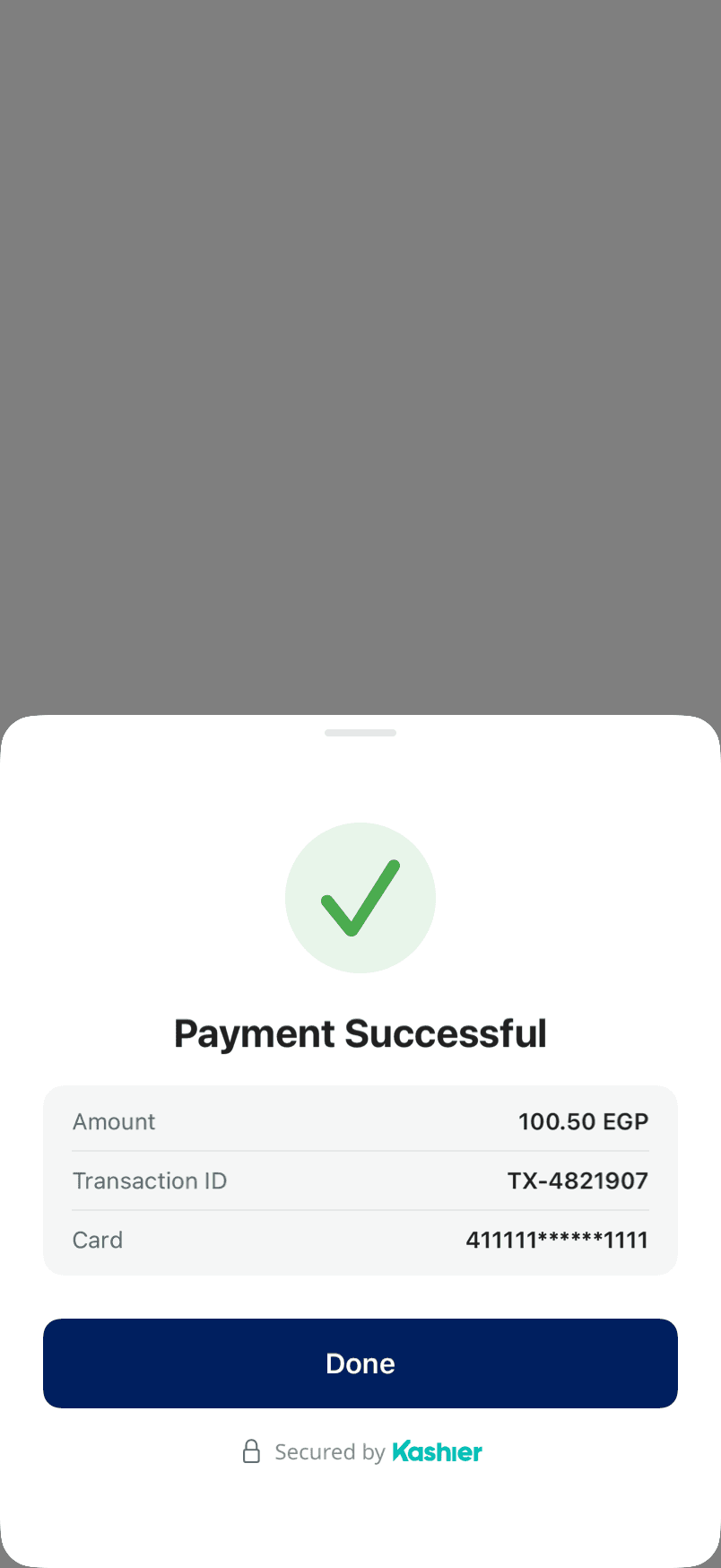
| Success | "Payment Successful", a summary of the amount, transaction ID and masked card, and Done |
| Failure | "Payment Failed", the reason, and Try Again / Cancel |
| Pending | "Payment Pending" and Done |
Support and license
Support
For help with an integration, contact Kashier support at [email protected].
License
The SDK is provided under the Kashier iOS SDK License. See the license page.